How Do I Install Pokémon Brown?
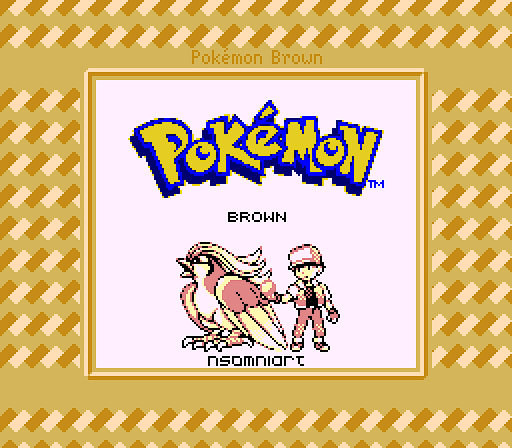
Pokémon Brown is one of the foundational Pokémon ROM hacks: a Pokémon Red-based adventure that replaces Kanto with the new region of Rijon, introduces its own Gym challenge and story, expands the Pokédex, adds unusual new types, and eventually connects into the same broader world as Pokémon Prism.
Installing Pokémon Brown is a little more confusing today than it used to be because “Pokémon Brown” now refers to two different eras of the same project.
The original/classic Brown line culminated in the 2014-era v5.4 release and the later Brown 2016 (TPP) variant created for Twitch Plays Pokémon.
Then, in 2024, RainbowDevs released the enormous Pokémon Brown 20th Anniversary Edition, which effectively became the modern mainline version of Brown.
As of August 29, 2026, RainbowDevs lists Pokémon Brown v6.1.2 as the latest public mainline release. That version is part of the 20th Anniversary Edition, however, and it gets its own separate Rom Professor install guide. RainbowDevs still provides Brown 2016 (TPP) from the official Brown page for players who specifically want the older classic experience, while warning that the old version is no longer maintained and may contain glitches.
So for this guide:
Classic Pokémon Brown = Brown 2016 (TPP) / the pre-20th-Anniversary Brown experience.
If you want the newest redesigned Brown with 231 Pokémon, modern mechanics, updated graphics, and current development, read our separate Pokémon Brown 20th Anniversary installation guide.
Rom Professor does not provide, host, or link to copyrighted Pokémon Red ROMs or pre-patched Pokémon Brown ROMs. You need to provide your own legally obtained clean Pokémon Red ROM and apply the Brown patch yourself.
What You Need Before Installing Pokémon Brown
For classic Pokémon Brown, you need:
- A clean English Pokémon Red ROM
- The classic Pokémon Brown patch
- Preferably the officially archived Brown 2016 (TPP) package
- A compatible ROM patcher
- A Game Boy/Game Boy Color emulator
- A way to extract ZIP archives
- A safe place to keep the original Pokémon Red ROM
- A backup location for your Pokémon Brown save
The basic process is:
Clean Pokémon Red + Pokémon Brown patch = Pokémon Brown
The finished game will normally end in:
.gb
or sometimes:
.gbc
depending on how the file is named.
That finished ROM is what your emulator opens.
The patch itself is not the playable game.
Classic Pokémon Brown vs. Brown 20th Anniversary
Before downloading anything, make sure you know which version you actually want.
Classic Pokémon Brown
The classic Brown line is the old-school Rijon experience most long-time ROM hack players remember.
The 2014 release is commonly identified as:
Pokémon Brown v5.4
A later modified version was prepared for Twitch Plays Pokémon in 2016.
RainbowDevs currently labels that archival release:
Brown 2016 (TPP)
and links it directly from the official Pokémon Brown project page.
The TPP build is not a completely different game. It is a modified version of the previous Brown release created to make the game more practical for the Twitch Plays Pokémon run.
Community archival research records changes such as dialogue edits, some map changes, and additional TPP-specific adjustments. A post quoting Brown’s original developer described the TPP build as a slightly modified version of the previous Brown release.
Pokémon Brown 20th Anniversary
The modern edition released in 2024 and is dramatically more ambitious.
RainbowDevs describes the current Brown as featuring:
- 231 Pokémon
- Updated Rijon maps
- Upgraded graphics
- Two selectable Trainers
- Modernized mechanics
- Physical/Special Split
- New characters
- Extra story
- Pokémon Prism integration
- Additional quality-of-life features
The current public version is:
v6.1.2
released December 25, 2024.
RainbowDevs has also publicly teased a future 6.2 update, including a January 17, 2026 developer stream, but the official Brown page still lists 6.1.2 as the latest public build as of August 2026.
If you want that version, use our Pokémon Brown 20th Anniversary install guide.
Which Version of Pokémon Brown Should You Play?
For almost everyone discovering Brown for the first time in 2026:
I recommend Brown 20th Anniversary.
It is the supported, substantially updated version.
However, classic Brown remains worth installing if you specifically want to experience:
- One of the most historically important early Pokémon ROM hacks
- Brown closer to its original design
- The version that existed before the 2024 overhaul
- The Brown that directly preceded Pokémon Prism
- The version used around the Twitch Plays Pokémon era
- Old Gen 1-style ROM hacking design
This article is for that audience.
Where to Get the Classic Pokémon Brown Patch
Use the official RainbowDevs Pokémon Brown page.
Official Pokémon Brown page from RainbowDevs
Scroll to:
Looking for an older version?
RainbowDevs currently provides:
Download Brown 2016 (TPP)
The developers explicitly warn that the release is no longer under development and may contain glitches.
That warning matters.
Classic Brown is an archival game now.
RainbowDevs’ current development work is centered on the newer 20th Anniversary line rather than repairing the 2016 build.
Avoid Random Pokémon Brown Download Sites
Do not search for:
Pokemon Brown ROM download
or:
Pokemon Brown prepatched
and grab a complete game from a random ROM site.
Besides the copyright problem, you may have no idea what version you actually received.
A file labeled simply:
Pokemon Brown.gb
could be:
- Brown 2004
- Brown 2009
- Brown 2014 v5.4
- Brown 2016 TPP
- Brown 20th Anniversary
- An unofficial modified version
- A broken pre-patched ROM
Using the official RainbowDevs archive removes most of that ambiguity.
What Base ROM Does Pokémon Brown Use?
Pokémon Brown is based on:
Pokémon Red Version
More specifically, classic Brown expects the standard English USA/Europe Pokémon Red release commonly identified as:
Pokemon Red (UE) [S][!].gb
The established Pokémon Red disassembly project identifies the SHA-1 of that clean ROM as:
ea9bcae617fdf159b045185467ae58b2e4a48b9a
Community documentation for the classic Brown TPP build likewise identifies:
Pokémon Red Version (USA, Europe) (SGB Enhanced)
as the base.
Pokémon Brown Base ROM Table
| Item | Required |
|---|---|
| Base game | Pokémon Red |
| Region | USA / Europe English |
| Platform | Game Boy |
| Common ROM name | Pokémon Red (UE) [S][!] |
| SHA-1 | ea9bcae617fdf159b045185467ae58b2e4a48b9a |
| Clean ROM required | Yes |
You do not need Pokémon Gold, despite occasional inaccurate third-party pages claiming Brown is Gold-based.
Brown is a:
Pokémon Red ROM hack.
RainbowDevs’ own project page explicitly lists:
Base Game: Pokémon Red.
Do Not Use Pokémon Blue as the Base
Brown is specifically based on Red.
Do not substitute:
- Pokémon Blue
- Pokémon Yellow
- Japanese Pokémon Red
- Pokémon FireRed
- A translated Pokémon Red
- Pokémon Red++
- Shin Pokémon Red
- PureRed
- Another Red ROM hack
- An already patched Brown ROM
Start from a clean Pokémon Red file.
How to Check Your Pokémon Red ROM
If your patcher rejects the ROM or the finished game behaves strangely, check its SHA-1.
You want:
ea9bcae617fdf159b045185467ae58b2e4a48b9a
That is far more reliable than the filename.
A file named:
Pokemon Red.gb
could contain almost anything.
A matching SHA-1 tells you that the actual ROM data matches the known English Pokémon Red release used by the pret disassembly.
What Patch Format Does Classic Pokémon Brown Use?
The classic Brown releases were distributed during the era when IPS patching was standard for Game Boy ROM hacks.
The Brown TPP build has likewise circulated as an IPS patch applied to the standard USA/Europe Pokémon Red ROM. Community archival work around the TPP release documents an IPS patch and the corresponding Pokémon Red base.
However, use the actual patch included in the official RainbowDevs Brown 2016 archive rather than relying on a filename from an old mirror.
Patch packages can be reorganized when projects are re-archived.
A modern multi-format patcher such as Rom Patcher JS will recognize the supplied patch format automatically.
How to Patch Pokémon Brown
RainbowDevs has a dedicated general patching guide for its non-Prism games.
The developers recommend:
- Obtain the patch from the game’s official page.
- Provide the required English Pokémon ROM.
- Open Rom Patcher JS.
- Put the ROM and patch into their respective fields.
- Apply the patch.
- Download the resulting game.
- Open it in an emulator.
That same basic workflow works well for classic Brown.
Step 1: Download Brown 2016 From RainbowDevs
Open the official Brown page.
Find:
Looking for an older version?
Download:
Brown 2016 (TPP)
Remember that RainbowDevs considers this an unsupported archival release.
Step 2: Extract the Download
If the Brown archive is a:
.zip
file, extract it.
Do not simply drop the ZIP into your emulator.
You need access to the actual patch inside.
Depending on the archive, you may also find:
- Documentation
- README information
- Notes
- Additional files
Read any included README before patching.
Step 3: Prepare Clean Pokémon Red
Locate your clean Pokémon Red ROM.
It should end in:
.gb
or potentially .gbc if someone previously renamed the extension.
The preferred original format is:
.gb
Verify:
SHA-1: ea9bcae617fdf159b045185467ae58b2e4a48b9a
Make a backup.
For example:
Pokemon Red CLEAN.gb
Never patch your only copy.
Step 4: Open Rom Patcher JS
RainbowDevs currently recommends Rom Patcher JS for patching its games.
You should see fields for:
ROM file
and:
Patch file
Step 5: Select Pokémon Red
Under:
ROM file
choose the clean English Pokémon Red ROM.
Do not select:
- Pokémon Brown
- Pokémon Blue
- Your save file
- The ZIP archive
- Another ROM hack
Step 6: Select the Brown Patch
Under:
Patch file
choose the patch from the Brown 2016 archive.
If the archive contains an IPS patch, Rom Patcher JS will recognize it.
Your setup should effectively be:
ROM: Pokémon Red
Patch: Pokémon Brown
Step 7: Apply the Patch
Choose:
Apply Patch
The browser should generate a new Game Boy ROM.
Save that output somewhere permanent.
Step 8: Rename the Finished ROM
A useful filename is:
Pokemon Brown Classic.gb
or:
Pokemon Brown 2016.gb
Keeping the word Classic in the name is especially useful today because you may eventually install the modern 20th Anniversary edition as well.
For example:
Pokemon Brown Classic.gb
Pokemon Brown 20th Anniversary.gb
That eliminates confusion later.
Step 9: Open Pokémon Brown in Your Emulator
Open your preferred Game Boy/Game Boy Color emulator.
Load:
Pokemon Brown Classic.gb
You should see Pokémon Brown rather than vanilla Pokémon Red.
Step 10: Make a Test Save
Before playing seriously:
- Start the game.
- Use the normal Pokémon save option.
- Close the emulator completely.
- Reopen Brown.
- Confirm Continue appears.
- Load the save.
Classic Brown is an old unsupported build.
It is worth confirming your emulator and save setup immediately rather than discovering a problem twenty hours later.
Suggested screenshot: Capture Rom Patcher JS with the clean Pokémon Red ROM loaded and the Brown patch selected, while hiding any local folder paths or personal information.
Best Emulator for Pokémon Brown on Windows
RainbowDevs currently recommends:
BGB
for Game Boy and Game Boy Color titles.
BGB is an excellent fit for classic Brown because Brown is fundamentally a Gen 1 Game Boy game.
It handles:
- Game Boy games
- Super Game Boy features
- Battery saves
- Accurate emulation
- Link features
For Windows, BGB is my first choice if you want to follow the developer recommendation.
Other accurate emulators such as:
- SameBoy
- mGBA
can also run Pokémon Red-based games well.
Should You Use VisualBoyAdvance?
RainbowDevs specifically recommends against VisualBoyAdvance for its Game Boy projects.
That matters because a lot of extremely old Pokémon Brown tutorials were written when VBA was one of the most famous Pokémon emulators.
If you encounter:
- Graphical glitches
- Strange colors
- Save problems
- Audio issues
on an old VBA build, test the exact same Brown ROM in BGB or SameBoy before assuming the patch is bad.
Best Emulator for Pokémon Brown on Mac
RainbowDevs notes that BGB can be run under:
- Wine
- CrossOver
on macOS or Linux.
You do not need to go through that extra trouble, though.
For native macOS use, SameBoy is an excellent Game Boy/Game Boy Color emulator.
mGBA is another convenient choice if you already use it for GBA ROM hacks.
For classic Brown:
SameBoy is my preferred Mac recommendation.
Can I Play Pokémon Brown on Android?
Yes.
Classic Pokémon Brown is a Game Boy ROM hack.
Once patched, any sufficiently accurate Game Boy/Game Boy Color emulator should be able to load the resulting .gb.
Good choices include:
- RetroArch with a Game Boy core
- SameBoy-based cores
- Gambatte
- Other established GB/GBC emulators
The important part is that the emulator properly handles:
- Game Boy saves
- SGB-compatible games
- Standard Gen 1 Pokémon behavior
If one emulator produces strange graphics or save problems, test the same ROM in another accurate emulator before repatching.
Can I Play Pokémon Brown on iPhone?
Yes.
Patch Pokémon Brown first.
Then import the finished:
.gb
file into a Game Boy-compatible iOS emulator such as Delta or another current GB/GBC emulator.
The process is:
- Patch Pokémon Red into Brown.
- Save the finished
.gbto Files. - Open your emulator.
- Import the
.gb. - Start Brown.
- Make a normal in-game save.
Do not import the:
.ips
patch as the game.
How to Play Pokémon Brown in Color
Pokémon Brown is built on Pokémon Red, which is fundamentally a Game Boy title rather than a native full-color Game Boy Color game.
However, Pokémon Red supports Super Game Boy enhancements, and Brown can take advantage of colorized presentation when played using compatible Super Game Boy-style emulation.
If your emulator supports choosing the system model:
look for something like:
Super Game Boy
or:
SGB
SameBoy, for example, supports multiple Game Boy hardware models.
If you prefer classic monochrome or Game Boy-style palettes, you can leave the emulator in ordinary Game Boy mode.
Best Emulator Settings for Pokémon Brown
Classic Brown does not require complicated settings.
A good starting configuration is:
| Setting | Recommendation |
|---|---|
| Platform | Game Boy |
| Windows | BGB |
| Mac | SameBoy |
| Android | Accurate GB/GBC core |
| iPhone/iPad | Delta or another accurate GB emulator |
| Save type | Automatic/default |
| Hardware mode | Game Boy or Super Game Boy |
| Save states | Secondary only |
| Normal in-game saves | Strongly recommended |
| VBA | Avoid if problems occur |
Leave most settings at defaults.
Do not randomly change:
- Save RAM
- Mappers
- CPU timing
- Cartridge type
unless you are troubleshooting a documented problem.
Use Normal In-Game Saves
Save states are useful for convenience.
They should not be the only copy of your progress.
The important file is the normal battery save created when you select:
SAVE
inside Pokémon Brown.
Depending on your emulator, that file may end in:
.sav
or another emulator-specific format.
Normal saves are much easier to:
- Back up
- Move between emulators
- Transfer to another device
- Migrate into Brown 20th Anniversary
- Recover if a save state becomes invalid
Keep backups.
RainbowDevs explicitly warns that the archived Brown 2016 build can contain glitches.
How to Update Classic Pokémon Brown Safely
Classic Brown itself is no longer being developed.
That means there is no:
Brown 2016 → Brown 2017 → Brown 2018
upgrade path.
The modern successor is:
Pokémon Brown 20th Anniversary Edition
RainbowDevs officially supports migrating old Brown saves into the newer game, including saves from:
- Brown 2014
- Brown 2016 TPP
However, the developers also explicitly recommend starting a new game when moving from those old versions because the 20th Anniversary overhaul changes so much.
If you want to preserve an old classic save anyway, there is an official migration procedure.
How to Move a Classic Brown Save to Brown 20th Anniversary
Step 1: Back Up the Save
Make a copy of your classic:
.sav
file.
Do not experiment on your only copy.
Step 2: Make Sure You Can Escape Your Current Map
Before migrating, RainbowDevs says you need access to at least one of:
- Fly
- Teleport
- Dig
- Escape Rope
Step 3: Save Somewhere Those Tools Work
In classic Brown, save in a location where one of those escape methods can be used.
Do not save in:
- A scripted scene
- A battle
- An inescapable interior
- A location where none of the listed warp methods work
Step 4: Install Brown 20th Anniversary Separately
Patch the current 20th Anniversary version onto a clean Pokémon Red ROM.
Do not patch the new version over your old Brown ROM.
Step 5: Load the Classic Save in the New Game
Associate a copy of the old .sav with your new Brown ROM.
When the game first loads, RainbowDevs warns that the graphics may appear glitched.
That is expected during migration.
Step 6: Immediately Warp
Use:
- Fly
- Teleport
- Dig
- Escape Rope
as appropriate.
Once the map reloads, the graphical corruption should clear and you can continue playing.
Step 7: Save Again
Make a new normal save.
Restart the game.
Check:
- Party
- PC boxes
- Items
- Badges
- Story progress
- Pokédex
- Map location
Keep the classic backup indefinitely.
Should You Transfer an Old Brown Save or Start Over?
For Brown 2014/2016 → Brown 20th Anniversary:
I recommend starting over.
More importantly, RainbowDevs recommends starting over too.
The 20th Anniversary version contains so many changes that a new playthrough lets you experience:
- New maps
- Redesigned progression
- New Pokémon
- New story content
- New mechanics
- Updated graphics
- Rebalanced battles
in the intended order.
Save migration is more useful for someone with a sentimental old save they specifically want to preserve.
Common Pokémon Brown Installation Problems
“The Brown patch won’t apply”
Check the base ROM first.
Classic Brown needs Pokémon Red.
The expected clean Red SHA-1 is:
ea9bcae617fdf159b045185467ae58b2e4a48b9a
If it does not match, you probably have:
- Another region
- A modified ROM
- A bad dump
- Another hack
- Pokémon Blue
- An already patched file
Start from a verified clean Pokémon Red ROM.
“I downloaded Pokémon Brown but only got a patch”
That is correct.
ROM hack developers generally distribute the changes to the game rather than Nintendo’s copyrighted Pokémon Red ROM.
You supply Pokémon Red yourself and apply the patch.
RainbowDevs’ general setup instructions use exactly that model.
“My emulator won’t open the IPS file”
An IPS file is not playable.
You need:
Pokémon Red + IPS patch
to create:
Pokémon Brown .gb
Only the final .gb file goes into your emulator.
“Can I rename .ips to .gb?”
No.
Renaming:
Pokemon Brown.ips
to:
Pokemon Brown.gb
does not patch anything.
You have only changed the filename.
“I patched Pokémon Blue instead”
Start over with Pokémon Red.
Brown is explicitly Red-based.
“Normal Pokémon Red starts”
You are opening the wrong file.
Your clean Red ROM and patched Brown ROM should be two separate files.
For example:
Pokemon Red CLEAN.gb
Pokemon Brown Classic.gb
Open the second one.
“The game boots but glitches badly”
First verify:
- Correct Pokémon Red base
- Clean ROM
- Correct Brown patch
- Modern emulator
Then test the exact same ROM in:
BGB
or:
SameBoy
RainbowDevs specifically recommends BGB for Game Boy/Game Boy Color games and advises against VBA.
“VisualBoyAdvance shows strange graphics”
Switch emulators.
RainbowDevs explicitly recommends not using VBA for these games.
“The classic Brown download has glitches”
That is possible even if you patched correctly.
RainbowDevs explicitly says Brown 2016 TPP is:
- No longer developed
- Known to contain glitches
- Provided essentially as an archival older version
If you want the maintained game:
install Brown 20th Anniversary instead.
“Is Brown 2016 the same as Brown v5.4?”
Not exactly.
The 2014 version is commonly referred to as:
Brown v5.4.
The 2016 TPP build is an edited version prepared for Twitch Plays Pokémon.
Community archival documentation says the TPP version was based on the previous Brown release but included dialogue, map, and other adjustments for the Twitch run.
“Why does the official Brown page say v6.1.2?”
Because the project moved forward.
Today, RainbowDevs treats the 20th Anniversary line as the main Pokémon Brown release.
The official page lists:
Latest Version: 6.1.2
while separately providing:
Brown 2016 (TPP)
under its older-version section.
“Is Pokémon Brown 6.2 out?”
Not yet according to the official Brown page as of August 29, 2026.
RainbowDevs held a January 2026 stream showing the still-unreleased 6.2 update, but the project page continues to list 6.1.2 as the latest public Brown version.
“My classic save looks glitched in 20th Anniversary”
That is expected during the official migration process.
Use:
- Fly
- Teleport
- Dig
- Escape Rope
immediately after loading the save.
The new map load should correct the graphics.
“My old save disappeared after renaming the ROM”
Many emulators match ROMs and saves by filename.
For example:
Pokemon Brown Classic.gb
and:
Pokemon Brown Classic.sav
belong together.
If you rename only the ROM, the emulator may create a fresh blank save.
Back up your .sav and either:
- Make the filenames match
or:
- Use your emulator’s save-import feature
“My save state won’t work in another version”
That is normal.
Save states capture the internal state of:
- One emulator
- One ROM
- One specific moment
They are not reliable migration files.
Use the normal battery save.
Can I Play Pokémon Brown on Real Game Boy Hardware?
Yes.
Classic Brown is a Game Boy ROM hack and can run on compatible flash hardware.
Possible devices include:
- Game Boy
- Game Boy Pocket
- Game Boy Color
- Game Boy Advance
- Game Boy Advance SP
RainbowDevs’ current Brown page likewise lists support across the classic Game Boy hardware family for its binary Brown releases.
Your exact result depends on:
- Flashcart compatibility
- Save support
- Cartridge mapper support
- Hardware quality
Before starting a long playthrough:
- Save normally.
- Power the system completely off.
- Wait.
- Turn it back on.
- Confirm the save still exists.
Do that before investing dozens of hours.
Does Classic Pokémon Brown Need RTC?
Classic Brown is based on Pokémon Red rather than Pokémon Crystal.
Therefore it does not depend on the same battery-backed real-time-clock system used by Pokémon Crystal.
That makes hardware and emulator setup simpler.
The core requirements are proper:
- ROM compatibility
- Battery-save support
- Game Boy emulation
Are Cheats Safe in Pokémon Brown?
Use caution.
Brown changes a large amount of Pokémon Red’s internal data, including:
- Maps
- Pokémon data
- Types
- Moves
- Trainer data
- Items
- Events
- Story flags
A vanilla Pokémon Red cheat may therefore point at data Brown uses differently.
Possible outcomes include:
- Broken items
- Invalid Pokémon
- Script problems
- Map corruption
- Save corruption
Before using cheats:
- Back up your normal save.
- Test one code at a time.
- Prefer Brown-specific codes.
- Do not immediately overwrite your backup.
- Avoid movement or event-skipping codes during story sequences.
How to Verify That Pokémon Brown Installed Correctly
Classic Brown is easy to distinguish from Pokémon Red once you start.
Check the Title and Opening
The game should identify itself as:
Pokémon Brown
rather than Pokémon Red.
Check the Region
You should be beginning a new adventure in:
Rijon
not Pallet Town and Kanto’s ordinary Pokémon Red campaign.
The Brown entry in the Rom Professor question bank specifically identifies Rijon as the defining structure of the classic hack.
Check Your Base Before Patching
Your clean Pokémon Red should have:
SHA-1: ea9bcae617fdf159b045185467ae58b2e4a48b9a
Test Saving
Make a normal in-game save.
Then:
- Close the emulator.
- Reopen Brown.
- Confirm Continue appears.
- Load the save.
- Save again.
If Brown launches into Rijon and the battery save survives a full emulator restart, your installation is ready.
Pokémon Brown Installation FAQ
What version of Pokémon Brown does this guide cover?
This guide focuses on classic Pokémon Brown, especially the archival Brown 2016 (TPP) release currently linked by RainbowDevs.
The modern 20th Anniversary Edition has its own separate installation guide.
What is the latest version of classic Pokémon Brown?
There is no newer maintained classic branch.
RainbowDevs currently provides:
Brown 2016 (TPP)
as the older archived version and warns that it is no longer under development.
What is the latest Pokémon Brown overall?
The current official mainline Brown release is:
Pokémon Brown v6.1.2
released December 25, 2024.
That is the 20th Anniversary version.
Is Pokémon Brown 6.2 available?
Not publicly as of August 29, 2026.
RainbowDevs has shown an unreleased 6.2 update, but the official page still lists 6.1.2 as current.
Is classic Pokémon Brown complete?
Yes.
The classic Brown adventure can be played through its main Rijon campaign and League.
However, RainbowDevs warns that the archived 2016 TPP build contains old bugs and is no longer supported.
What ROM does Pokémon Brown use?
Use the clean English:
Pokémon Red Version USA/Europe
ROM.
Expected SHA-1:
ea9bcae617fdf159b045185467ae58b2e4a48b9a
Is Pokémon Brown based on Pokémon Gold?
No.
Pokémon Brown is based on:
Pokémon Red.
RainbowDevs explicitly lists Pokémon Red as the base game.
Does classic Brown use IPS?
The classic Brown/TPP branch has historically used IPS patching.
Use the exact patch supplied in the official Brown 2016 archive with a multi-format patcher such as Rom Patcher JS. Community archival documentation specifically records an IPS patch for the TPP build.
What patcher should I use?
Rom Patcher JS is the easiest choice.
RainbowDevs’ current setup page recommends it for its non-Prism Game Boy projects.
What emulator should I use on Windows?
RainbowDevs recommends:
BGB
for Game Boy and Game Boy Color titles.
Can I use VisualBoyAdvance?
RainbowDevs recommends that you do not use VBA for these games.
Use BGB, SameBoy, or another modern accurate Game Boy emulator.
Can I play Pokémon Brown on Android?
Yes.
Patch Brown first, then load the finished .gb into an accurate Game Boy emulator.
Can I play Pokémon Brown on iPhone?
Yes.
Patch the game first and import the finished .gb into a current Game Boy-compatible emulator.
Can I play Pokémon Brown in color?
You can use Super Game Boy-style color support in compatible emulators.
Brown is still fundamentally a Pokémon Red/Game Boy hack rather than a native full-color GBC game.
Can I play Pokémon Brown on a real Game Boy?
Yes, using appropriate flashcart or cartridge hardware.
Test battery saving before beginning a long game.
Can I update classic Brown to the 20th Anniversary Edition?
Yes.
RainbowDevs says old Brown 2014 and Brown 2016 saves can be migrated into the modern game, although the team recommends starting fresh.
How do I migrate the save?
Back up the save, then in classic Brown:
- Save somewhere where Fly, Teleport, Dig, or an Escape Rope can be used.
- Load the save in Brown 20th Anniversary.
- Ignore the temporary graphical corruption.
- Immediately warp using one of those methods.
- Save again afterward.
That is the migration procedure published by RainbowDevs.
Should I play classic Brown or Brown 20th Anniversary?
Play classic Brown if you want the historical ROM-hacking experience.
Play Brown 20th Anniversary if you want the version RainbowDevs currently develops and recommends.
For most new players in 2026, I would choose the 20th Anniversary release first and return to classic Brown afterward if you want to see how the project evolved.
Is Brown 2016 the same as Brown 2014 v5.4?
No.
Brown 2016 TPP was built from the earlier Brown line but received modifications for Twitch Plays Pokémon. Community archival research documents dialogue changes, map adjustments, and TPP-specific additions.
Is Pokémon Brown connected to Pokémon Prism?
Yes.
Brown established the Rijon setting that later became part of the broader world used by Pokémon Prism.
That connection becomes substantially more explicit in the modern Brown 20th Anniversary release.
Where should I go after installing classic Pokémon Brown?
Once the game works, read our Pokémon Brown beginner guide.
Brown may use Pokémon Red as its engine, but Rijon is a completely different region. The routes, Gym progression, Pokémon locations, type system, evolution methods, TMs, story progression, and postgame do not follow Kanto.
Our Pokémon Brown latest version guide also explains the confusing relationship between:
- Brown 2004
- Brown 2009
- Brown 2014 v5.4
- Brown 2016 TPP
- Brown 20th Anniversary
so you can tell exactly which version you are playing.
Suggested article screenshots: Use your own capture of the classic Brown title screen and a clean Rom Patcher JS patching screen. The question bank specifically recommends an article-specific title or patching screenshot rather than an image taken from a random pre-patched ROM site.