How Do I Install Pokémon Copper?
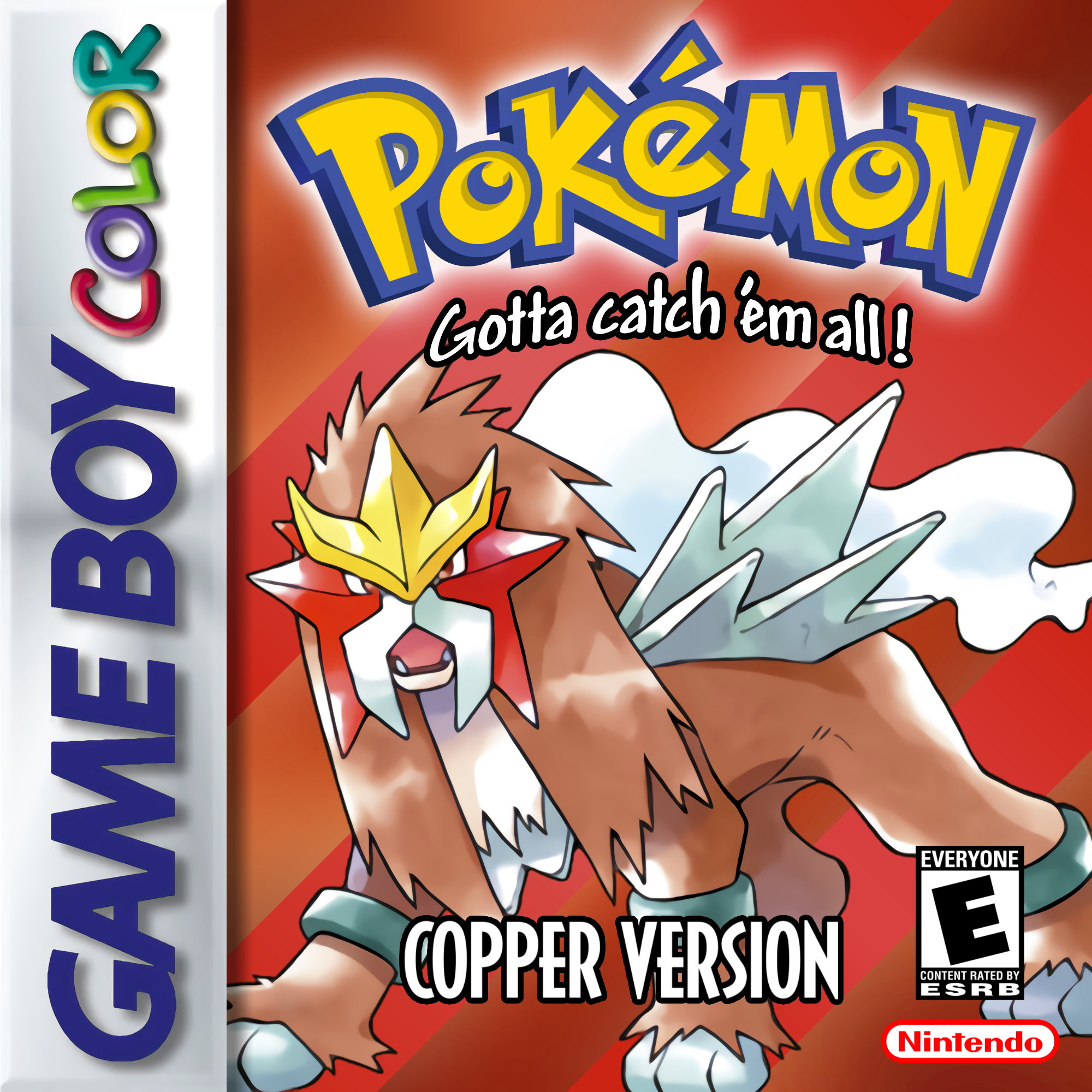
How to Download and Install Pokémon Copper Safely
Pokémon Copper is a standalone Pokémon fan game set in the Arizona-inspired Azori Region. It features 113 new Pokémon, regional variants, new Mega Evolutions, an open-world-style progression system after the first Gym, level scaling, a 500-Pokémon regional Pokédex, and a complete story and post-game.
Unlike most games covered by Rom Professor, Pokémon Copper is not a ROM hack. It was created using Pokémon Essentials v21.1, which means you do not need Pokémon FireRed, Emerald, or any other base ROM to play it.
The game is distributed as a standalone download by its developer.
As of August 2026, the newest official release is Pokémon Copper v1.8.5.
This guide explains how to safely download, install, update, and play Pokémon Copper on Windows, Mac, Android, and other supported devices.
What You Need Before Installing Pokémon Copper
Pokémon Copper is easier to install than a traditional ROM hack because you do not need a ROM patcher.
You need:
- The official Pokémon Copper download
- Enough storage space to extract the game
- An archive extraction program if your operating system does not automatically extract the download
- Windows, Mac, Linux, Android, or a Steam Deck
Android players also need:
- JoiPlay
- The RPG Maker Plugin for JoiPlay
Mac users need:
- Porting Kit
You do not need:
- Pokémon FireRed
- Pokémon Emerald
- A GBA ROM
- Lunar IPS
- Floating IPS
- ROM Patcher JS
- A GBA emulator
Pokémon Copper is its own standalone game.
What Base ROM Does Pokémon Copper Use?
Pokémon Copper does not use a base ROM.
This is extremely important.
Pokémon Copper was made using:
Pokémon Essentials v21.1
rather than modifying an existing Game Boy Advance Pokémon ROM.
That means you should not search for things such as:
Pokémon Copper FireRed ROM
Pokémon Copper pre-patched ROM
Pokémon Copper GBA
Pokémon Copper .gba
None of these are required for the official game.
If a website tells you that you need a Pokémon FireRed ROM to install the current Pokémon Copper fangame, you are probably looking at instructions for a different project.
The official Pokémon Copper download already contains the files required to run the game.
Where to Get the Official Pokémon Copper Download
Pokémon Copper has its own official website.
The site’s Downloads page contains the newest release as well as previous versions of the game.
As of August 2026, the current release is:
Pokémon Copper v1.8.5
The developer provides downloads for:
- Windows
- Mac
- Linux
- Android
- Steam Deck
Use the official download page:
Official Pokémon Copper Downloads
The download buttons on that page currently lead to the developer’s MEGA downloads.
You do not need to find a ROM mirror or third-party pre-patched copy.
Because Pokémon Copper is a Pokémon Essentials fangame rather than a patched Nintendo ROM, downloading the official standalone game package is the normal installation method.
How to Patch Pokémon Copper
You don’t.
Pokémon Copper does not require patching.
There is no .ips, .ups, or .bps file that needs to be applied to a Pokémon ROM.
There is also no need for:
- ROM Patcher JS
- Floating IPS
- Lunar IPS
- MultiPatch
- Pokémon FireRed
- Pokémon Emerald
Instead, installation works like this:
Step 1: Open the Official Download Page
Go to the official Pokémon Copper download page.
Choose the newest version.
At the time this guide was updated, that is:
v1.8.5
Step 2: Download the Correct Version
Choose the download intended for your device.
Desktop users use the standard Pokémon Copper download.
Android has its own download listed separately on the official page.
Step 3: Extract the Download
Locate the downloaded Pokémon Copper archive.
Extract it to a normal folder.
For example:
Downloads/Pokemon Copper
Do not try to play the game while it is still inside the compressed archive.
Step 4: Open the Game Folder
Inside the extracted Pokémon Copper folder, Windows users should see:
Game.exe
This is the actual Pokémon Copper executable.
Step 5: Launch the Game
Double-click:
Game.exe
Pokémon Copper should start.
That’s it.
There is no ROM-patching step.
How to Play Pokémon Copper on Windows
Windows is the easiest way to play Pokémon Copper.
The official installation instructions are simply to download the game, extract it, and launch Game.exe.
Step 1: Download Pokémon Copper
Open the official download page.
Download the newest version.
At the time of writing:
Pokémon Copper v1.8.5
Step 2: Extract the Game
Open your Downloads folder.
Locate the Pokémon Copper archive.
Right-click it.
Choose:
Extract All
Choose where you want the game stored.
For example:
Documents/Pokemon Copper
Step 3: Open the Extracted Folder
Open the new Pokémon Copper folder.
Find:
Game.exe
Step 4: Run Pokémon Copper
Double-click:
Game.exe
The game should launch.
You do not need an emulator.
Step 5: Keep the Game Extracted
Do not repeatedly launch the game from inside the downloaded archive.
Leave the extracted folder somewhere permanent on your computer.
You can create a shortcut to Game.exe on your desktop if you want easier access.
How to Play Pokémon Copper on Mac
Pokémon Copper is built as an RPG Maker/Pokémon Essentials application, so the developer recommends using Porting Kit on macOS.
Step 1: Download Porting Kit
Download and install Porting Kit from its official website.
The Pokémon Copper download page links directly to the recommended Porting Kit download.
Step 2: Download Pokémon Copper
Download the newest Pokémon Copper release from the official site.
Step 3: Extract Pokémon Copper
Extract the downloaded archive.
Open the extracted folder and make sure you can locate:
Game.exe
Step 4: Open Porting Kit
Launch Porting Kit.
Choose:
Install
Step 5: Select Game.exe
When Porting Kit asks which Windows program you want to install, browse to your Pokémon Copper folder.
Select:
Game.exe
Step 6: Complete the Installation
Finish the Porting Kit setup.
Afterward, launch Pokémon Copper through Porting Kit.
These are the installation steps currently recommended on Pokémon Copper’s official download page.
How to Play Pokémon Copper on Android
Pokémon Copper can be played on Android using JoiPlay.
The developer’s current Android instructions specifically recommend:
JoiPlay 1.21.000
and:
RPG Maker Plugin 1.22.00
from the JoiPlay Patreon page.
Step 1: Download JoiPlay
Open the JoiPlay Patreon page linked by the official Pokémon Copper website.
Download:
JoiPlay 1.21.000
Step 2: Download the RPG Maker Plugin
Also download:
RPG Maker Plugin 1.22.00
Both are required by the official Copper Android instructions.
Step 3: Install JoiPlay
Open your Android Downloads folder.
Tap the JoiPlay installation package.
Android may ask whether you want to allow installation from that source.
Grant the required permission and install JoiPlay.
Step 4: Install the RPG Maker Plugin
Return to Downloads.
Open the RPG Maker Plugin package.
Install it as well.
Allow the permissions it requests.
Step 5: Download Pokémon Copper
Download the latest Pokémon Copper Android release from the official Copper website.
Step 6: Extract Pokémon Copper
Open the downloaded archive using your Android file manager.
Extract the entire game into a folder.
Do not leave the game compressed.
Step 7: Open JoiPlay
Launch JoiPlay.
Tap:
+
Then choose:
Add Game
Step 8: Select Pokémon Copper
Navigate to your extracted Pokémon Copper directory.
Select the game.
JoiPlay should add Pokémon Copper to your library.
Step 9: Launch Pokémon Copper
Tap Pokémon Copper inside JoiPlay.
The game should start.
The developer provides this JoiPlay method as the official Android installation process.
Android Maps Are Black or Missing
One Android-specific issue has been reported where the player and event sprites appear but much of the overworld is black.
The developer recommends holding down on Pokémon Copper inside JoiPlay and using:
Optimize Maps
Players experiencing the missing-map problem reported that this corrected it.
How to Play Pokémon Copper on iPhone
There is currently no officially supported iPhone or iPad version of Pokémon Copper.
The official Pokémon Copper download page lists:
- Windows
- Mac
- Linux
- Android
- Steam Deck
It does not currently provide an iOS download.
This is because Pokémon Copper is a Pokémon Essentials/RPG Maker XP game rather than a GBA ROM.
That means iPhone emulators such as Delta cannot simply load Pokémon Copper.
There is no .gba file to import.
You may find unofficial methods online involving compatibility layers, streaming, or experimental RPG Maker software, but these are not currently part of the developer’s official installation instructions.
For that reason, Rom Professor does not recommend downloading random Pokémon Copper .ipa files or unofficial iPhone conversions.
If official iOS support is added later, the Pokémon Copper download page is the safest place to check.
Best Emulator Settings for Pokémon Copper
On Windows, Mac, Linux, and Steam Deck, Pokémon Copper does not use a Pokémon emulator.
It is a Pokémon Essentials game.
You therefore do not need to configure:
- mGBA
- Delta
- RetroArch GBA cores
- VBA-M
- melonDS
- Azahar
Windows
Run the game normally using:
Game.exe
If you want to change the keyboard controls, Pokémon Essentials v19 and newer supports opening the keybinding menu with F1.
Android
Pokémon Copper runs through JoiPlay and the RPG Maker Plugin.
Start with JoiPlay’s default settings.
If the overworld appears black or map tiles are missing:
- Return to the JoiPlay game list.
- Hold down on Pokémon Copper.
- Select the game.
- Choose Optimize Maps.
- Relaunch Pokémon Copper.
The game’s developer has specifically recommended this fix for Pokémon Copper.
Avoid changing large numbers of JoiPlay compatibility settings before confirming that the game works with its normal configuration.
How to Update Pokémon Copper Without Losing Your Save
Pokémon Copper has already received a number of updates since its initial release.
The official download page currently contains versions ranging from v1.0 through v1.8.5.
Updating is straightforward, but the method differs slightly between desktop and Android.
Updating on Windows, Mac, Linux, or Steam Deck
The official instructions say:
- Download the newest version of Pokémon Copper.
- Delete the old Pokémon Copper game folder.
- Extract the new version.
- Launch the new version.
Your save is stored separately from the game files on these platforms, so deleting the old game directory does not normally delete your progress.
Pokémon Essentials v19 and newer normally stores its desktop save data in the operating system’s user-data directory rather than inside the game folder.
Still, making a backup before updating is always a good idea.
The important save file will normally have an .rxdata extension.
Updating Pokémon Copper on Android
Android works differently.
The official Copper instructions say to manually move your save to the new version.
First download and extract the newest Pokémon Copper version.
Do not immediately delete the old version.
Open the folder containing your old Pokémon Copper installation.
Look for a save file such as:
File A.rxdata
The letter can vary depending on which save slot you used.
For example:
File A.rxdata
File B.rxdata
File C.rxdata
Copy your save file.
Now open the folder containing the new Pokémon Copper version.
Navigate to the same folder containing its:
Game.exe
Paste your .rxdata save file there.
After confirming that the save works in the new version, you can remove the old Pokémon Copper folder.
Then add the new version to JoiPlay.
These are the developer’s official Android update instructions.
Common Pokémon Copper Installation Problems
Pokémon Copper Is Asking Me for a FireRed ROM
The official Pokémon Copper game should not ask you for a FireRed ROM.
The current Pokémon Copper is a Pokémon Essentials v21.1 fangame, not a FireRed ROM hack.
You may have downloaded the wrong project or followed instructions for a different Pokémon game.
I Can’t Find the .GBA File
There isn’t one.
Pokémon Copper does not run as a GBA ROM.
Windows users launch:
Game.exe
Android users add the game to JoiPlay.
I Downloaded Pokémon Copper but Nothing Happens
Make sure you extracted the archive first.
Do not attempt to run:
Game.exe
directly from inside the compressed download.
Extract the entire game folder, then launch it.
Windows Says Game.exe Is Missing
Check that your download finished correctly.
Then extract the entire Pokémon Copper archive again.
Do not move individual files out of the game directory.
Pokémon Essentials games rely on several folders and data files being stored together.
The Game Opens and Immediately Closes
First download a fresh copy of the current version from the official Pokémon Copper website.
Extract it into a new folder.
Avoid copying old game files over the new installation.
If you are updating, let your existing save load from its normal save location instead.
Pokémon Copper Is Black on Android
If character sprites appear but the map itself is black or missing, open JoiPlay and use:
Optimize Maps
on Pokémon Copper.
This solution was specifically recommended by the developer for the issue.
JoiPlay Doesn’t Show Pokémon Copper
Make sure you extracted the game first.
Then:
- Open JoiPlay.
- Tap +.
- Choose Add Game.
- Browse to the extracted Pokémon Copper folder.
- Add the game from there.
Also make sure the RPG Maker Plugin is installed.
My Save Disappeared After Updating on Android
Android players need to manually copy their old .rxdata save file to the new version’s game directory before deleting the old installation.
Look for:
File A.rxdata
or another similarly named save-slot file.
My Save Is Still There After Deleting Pokémon Copper on PC
That’s expected.
On desktop systems, Pokémon Essentials stores save data separately from the game’s installation folder.
This allows you to replace the game files during an update without losing your save.
Pokémon Copper Won’t Run in Delta
Delta emulates Nintendo systems such as the Game Boy Advance.
Pokémon Copper is not a GBA ROM.
It is a Pokémon Essentials game, so Delta cannot run it as a normal Pokémon ROM hack.
I Found a Pokémon Copper .GBA Download
That is not the official distribution of this Pokémon Copper game.
The developer distributes Pokémon Copper as a standalone Pokémon Essentials game through the official website.
Stick to the developer’s official download page.
How to Verify Pokémon Copper Installed Correctly
Launch the game.
If the installation worked, you should reach the Pokémon Copper title screen and be able to begin a new game.
Early in the game, you begin in:
Terah Town
You receive your starter from:
Professor Verde
and eventually begin exploring the:
Azori Region
These are part of the official Pokémon Copper storyline.
The game should also contain Pokémon and features that do not exist in the official Pokémon games, including:
- New Azori Pokémon
- Regional variants
- Custom Mega Evolutions
- A regional Pokédex containing 500 Pokémon
- Open progression after the first Gym
- Level scaling
- PokéSummons replacing traditional HMs
If you are seeing these features, Pokémon Copper is running correctly.
Pokémon Copper Installation FAQ
What is Pokémon Copper?
Pokémon Copper is a standalone Pokémon fangame created using Pokémon Essentials v21.1.
It takes place in the Arizona-inspired Azori Region.
Is Pokémon Copper a ROM hack?
No.
Pokémon Copper is a Pokémon Essentials fangame rather than a modified GBA ROM.
What base ROM does Pokémon Copper use?
None.
You do not need FireRed, Emerald, or any other Pokémon ROM.
Do I need Pokémon FireRed to play Pokémon Copper?
No.
Do I need Pokémon Emerald?
No.
Do I need a ROM patcher?
No.
Pokémon Copper does not require IPS, UPS, or BPS patching.
What is the latest Pokémon Copper version?
As of August 2026, the newest version listed on the official Pokémon Copper website is:
v1.8.5
Where do I download Pokémon Copper?
Use the official Pokémon Copper download page:
Pokémon Copper Official Download Page
Is Pokémon Copper free?
Yes.
The developer describes Pokémon Copper as a free fan-made project.
Can I play Pokémon Copper on Windows?
Yes.
Download the game, extract it, and launch:
Game.exe
Can I play Pokémon Copper on Mac?
Yes.
The developer recommends running the game through Porting Kit.
Can I play Pokémon Copper on Android?
Yes.
The official instructions use JoiPlay and the RPG Maker Plugin.
Can I play Pokémon Copper on iPhone?
There is currently no official iPhone/iOS download listed by the developer.
The official downloads currently cover Windows, Mac, Linux, Android, and Steam Deck.
Can I play Pokémon Copper in Delta?
No.
Delta is designed to emulate console ROMs. Pokémon Copper is a standalone RPG Maker/Pokémon Essentials game.
Can I play Pokémon Copper in mGBA?
No.
There is no official Pokémon Copper .gba ROM to load into mGBA.
Can I play Pokémon Copper on Steam Deck?
Yes.
The developer officially provides Steam Deck instructions.
Switch to Desktop Mode, download and extract Pokémon Copper, right-click Game.exe, add it to Steam, then return to Game Mode and launch it from your Steam library.
Can I play Pokémon Copper on Linux?
Yes.
The developer recommends using Wine.
From the directory containing Game.exe, run:
wine Game.exe
How do I update Pokémon Copper?
On Windows, Mac, Linux, and Steam Deck, download the latest version, remove the old game folder, and extract the new one.
Your save is stored separately.
On Android, copy your File A.rxdata or equivalent save-slot file from the old game folder into the new game’s folder before removing the old installation.
Will updating Pokémon Copper delete my save?
Normally, no.
Desktop saves are stored separately from the installation directory.
Android players should manually move their .rxdata save into the new version before deleting the previous installation.
When was Pokémon Copper released?
Pokémon Copper was publicly released in May 2026. Before launch, the developer announced a May 15, 2026 release date.
Does Pokémon Copper have Fakemon?
Yes.
The Azori Region includes 113 new Pokémon, along with regional variants and new Mega Evolutions.
Is Pokémon Copper finished?
The game contains a complete main Pokémon-style story, eight Gyms, the Horizon Cup, Elite Four and Champion progression, plus post-game content and additional encounters.
The developer has continued releasing balance changes, features, and bug fixes, with v1.8.5 currently listed as the newest release.
Do I need an emulator to play Pokémon Copper?
Not on Windows, Mac, Linux, or Steam Deck.
Windows runs the game’s Game.exe directly. Mac uses Porting Kit, Linux can use Wine, and Android uses JoiPlay.
What should I do if I find a website offering a “pre-patched Pokémon Copper ROM”?
Avoid it.
The current Pokémon Copper does not require a base ROM or ROM patch.
The safest option is to download the standalone game directly from the official Pokémon Copper website.