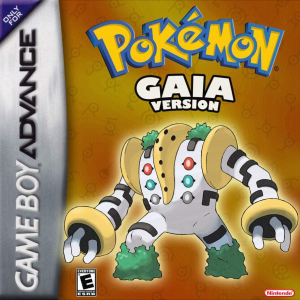
How to Download and Install Pokémon Gaia Safely

Pokémon Gaia is distributed as a patch for Pokémon FireRed rather than as a complete Game Boy Advance ROM. To install it, you need the official Pokémon Gaia patch, a clean copy of the correct Pokémon FireRed base game, a UPS-compatible patching tool, and a GBA emulator.
Pokémon Gaia is a particularly important hack to patch correctly because older installation guides sometimes refer to the required FireRed base using different release numbers. The simplest rule is to use a clean Pokémon FireRed 1.0 USA “Squirrels” ROM and, if necessary, verify its checksum rather than relying only on the filename.
As of August 2026, Pokémon Gaia Beta v3.2 remains the latest public release. Version 3.2 was released on November 8, 2018 as a bug-fix update to v3.0 and v3.1. A 2026 player discussion still identifies v3.2 as the latest available version, and the creator’s release thread lists v3.2 as the current download.
Despite the “Beta” label, Gaia v3.2 includes the full main story, all eight Gyms, the Pokémon League, Elite Four, and Champion. What it does not include is the planned postgame content.
Rom Professor does not provide, host, or link to copyrighted Pokémon FireRed ROM files or pre-patched Pokémon Gaia ROMs. This guide covers how to apply the official Gaia patch to a FireRed copy you legally obtained yourself.
What You Need Before Installing Pokémon Gaia
You need:
- The official Pokémon Gaia v3.2 patch
- A clean Pokémon FireRed 1.0 USA ROM
- A UPS-compatible ROM patcher
- A Game Boy Advance emulator
- A way to extract ZIP files
- Enough storage for the patched
.gbafile and save data
The Gaia download package contains the changes made by the developers. It does not replace the original Pokémon FireRed game.
You supply the compatible FireRed ROM yourself and apply:
pokemon_gaia_v3.2.ups
to that clean FireRed file.
The result is your playable Pokémon Gaia .gba file.
Keep an untouched copy of your clean FireRed ROM somewhere safe. If you ever need to reinstall Gaia or patch a future version, start with the clean base again instead of patching over your existing Gaia ROM.
What Base ROM Does Pokémon Gaia Use?
Pokémon Gaia is based on Pokémon FireRed 1.0 USA, commonly referred to as the Squirrels FireRed dump.
Older official Gaia installation instructions refer to:
1635 - Pokemon Fire Red (U)(Squirrels).gba
while also noting that 1636 should work as well.
This numbering discrepancy is why you should not depend entirely on the number in the filename.
The important part is that you have the clean FireRed 1.0 USA/Squirrels version.
The commonly used clean FireRed 1.0 Squirrels ROM has:
CRC32
DD88761C
If you are having trouble patching Gaia, checking that CRC32 value is much more reliable than checking whether the filename happens to contain “1635,” “1636,” or “Squirrels.”
Do not use:
- Pokémon FireRed 1.1
- Pokémon LeafGreen
- Another FireRed ROM hack
- A previously patched Pokémon Gaia ROM
- A modified FireRed ROM
- A translated or regional version that does not match the required base
- A ZIP file instead of the extracted
.gba
A recent 2026 Gaia player reported persistent crashes after patching an incorrect FireRed base. Repatching Gaia using the correct 1636/Squirrels FireRed base resolved the problem while preserving the player’s existing save.
That is a good example of why the base ROM matters even when a bad patch initially appears to work.
Where to Get the Official Pokémon Gaia Patch
The safest source is the Pokémon Gaia release thread maintained by its creator, Spherical Ice, now available through Eevee Expo.
Pokémon Gaia official release thread
The official thread includes Gaia’s release history, changelogs, installation information, and the creator’s download mirror.
For v3.2, the package is:
pokemon_gaia_v3.2.zip
Inside that archive is the UPS patch:
pokemon_gaia_v3.2.ups
The creator’s v3.2 release notes identify November 8, 2018 as the release date and specifically state that v3.2 is a bug-fix update to the v3 branch.
Avoid searching for something like:
Pokemon Gaia v3.2 ROM download
and downloading a random .gba file.
Those are usually pre-patched copies.
A pre-patched ROM gives you no reliable way to know:
- Whether the correct FireRed base was used
- Whether it has been altered
- Whether it actually contains v3.2
- Whether additional cheats or patches were added
- Whether it is corrupted
- Whether the save system is configured correctly
Using the official patch is safer and makes troubleshooting much easier.
How to Patch Pokémon Gaia
Pokémon Gaia uses a UPS patch.
You can use an older desktop program such as NUPS, which was included in Gaia’s traditional installation instructions, or a modern browser-based patcher such as Rom Patcher JS.
For most players today, the browser method is the easiest.
Step 1: Download the Official Pokémon Gaia Patch
Open the official Pokémon Gaia release page.
Download:
pokemon_gaia_v3.2.zip
Extract the ZIP file.
Inside, locate:
pokemon_gaia_v3.2.ups
Do not try to open this file directly in an emulator.
A .ups file is a patch, not a playable game.
Step 2: Prepare Your Clean FireRed ROM
Locate your legally obtained clean copy of Pokémon FireRed 1.0 USA.
The file should end in:
.gba
If it is inside a ZIP, RAR, or 7Z archive, extract it first.
You want something equivalent to:
Pokemon Fire Red (U)(Squirrels).gba
If you want to verify the file before spending time troubleshooting later, check that the clean FireRed 1.0 Squirrels base has:
CRC32: DD88761C
Keep the original file untouched.
Make a copy specifically for Pokémon Gaia.
Step 3: Open a UPS-Compatible Patcher
The original Gaia instructions used programs such as NUPS or Tsukuyomi UPS.
A simpler modern option is Rom Patcher JS, which runs directly in a web browser and supports UPS patches.
Nothing about Gaia requires an especially exotic patching program. The important requirement is UPS support.
Step 4: Select Your FireRed ROM
Under the patcher’s ROM file or source-file field, select your clean FireRed .gba.
Do not select the Gaia patch here.
The FireRed ROM is the original file being modified.
Step 5: Select the Pokémon Gaia UPS Patch
Under the Patch file field, choose:
pokemon_gaia_v3.2.ups
The patcher should recognize it as a UPS patch.
If the tool tells you that the source file is incorrect, stop and verify your FireRed ROM.
Do not simply ignore a checksum warning.
Step 6: Apply the Patch
Select Apply Patch.
The patcher will create a new Game Boy Advance ROM containing Pokémon Gaia.
Your original FireRed file should remain separate.
Download or save the newly created .gba file.
Step 7: Rename the Finished ROM
Give the resulting file an obvious name.
For example:
Pokemon Gaia v3.2.gba
This will make it much easier to tell Gaia apart from your clean FireRed base.
It also helps when managing save files later.
Many emulators associate a save with the game’s filename.
For example:
Pokemon Gaia v3.2.gba
and:
Pokemon Gaia v3.2.sav
belong together.
Step 8: Load Pokémon Gaia in Your Emulator
Open your GBA emulator.
Select:
Pokemon Gaia v3.2.gba
Do not select:
pokemon_gaia_v3.2.ups
If the Pokémon Gaia title screen appears, the patch has been applied.
The creator specifically recommends checking the title screen to confirm that the correct Gaia version is running.
How to Play Pokémon Gaia on Windows, Mac, Android, and iPhone
Pokémon Gaia is a Game Boy Advance game, so the finished .gba file can run in most good GBA emulators.
You do not need a special “Pokémon Gaia emulator.”
You need a normal GBA emulator with good FireRed compatibility and reliable save support.
Windows
For Windows, I recommend mGBA.
Gaia’s original documentation recommended VBA-M, and it remains capable of running the game, but mGBA is a more modern default choice today.
The process is simple:
- Install mGBA.
- Open mGBA.
- Choose the option to open a ROM.
- Select
Pokemon Gaia v3.2.gba. - Configure your controls.
- Start playing.
If you use VBA-M instead, Gaia’s original instructions specify that the save type should be Flash 128 KB.
Modern mGBA versions generally handle the correct save configuration automatically.
Mac
For macOS, mGBA is again a good first choice.
Gaia’s older official recommendations also included OpenEmu for Mac.
With mGBA:
- Open the emulator.
- Load your Gaia
.gba. - Configure controls if necessary.
- Make a normal in-game save shortly after starting.
If the game loads but fails to retain saves after restarting, check the emulator’s save settings and storage permissions.
Android
Pokémon Gaia works on Android through compatible GBA emulators.
Good options include:
- My Boy!
- RetroArch with the mGBA core
- Other modern GBA emulators with proper Flash save support
Gaia’s original compatibility guidance specifically recommended My Boy! on Android.
The process is:
- Patch Gaia first.
- Move the finished
.gbasomewhere easy to locate. - Open your GBA emulator.
- Browse to that folder.
- Select Pokémon Gaia.
- Start the game.
- Create a normal in-game save.
You do not need to patch the game again inside the emulator.
iPhone and iPad
Pokémon Gaia can also be played on iPhone and iPad using a compatible GBA emulator.
Delta is a convenient option for most users.
Patch Gaia first, then import the resulting .gba file into Delta.
A 2026 Gaia player reported running v3.2 through Delta successfully until a corrupted or incorrectly patched base caused a repeatable item-related crash. Repatching the game with the correct FireRed base fixed that issue while retaining the save, which suggests the ROM base rather than iOS itself was the root cause.
If Gaia behaves strangely in Delta, testing the exact same ROM and save in an mGBA-based emulator is a useful troubleshooting step.
Best Emulator Settings for Pokémon Gaia
Gaia’s original installation instructions specify:
Save type: Flash 128 KB.
That is the most important emulator-specific setting associated with the hack.
If you are using a modern emulator such as mGBA, it normally identifies the proper save hardware automatically.
You generally should not start changing a large number of advanced emulator settings unless you are actually having a problem.
A good baseline is:
| Setting | Recommendation |
|---|---|
| Save type | Flash 128 KB if manually required |
| Emulator | mGBA recommended |
| BIOS | Usually not required |
| Real-time clock | No special configuration normally needed |
| Frameskip | Off/default |
| Save states | Fine as a convenience, but don’t rely on them exclusively |
| Normal in-game saves | Strongly recommended |
Use In-Game Saves
Use Gaia’s normal Pokémon save option.
Save states are useful for convenience, but they should not be your only copy of your progress.
An emulator save state records the state of the entire emulator. That makes it less reliable for:
- Moving between emulators
- Updating the game
- Repatching the ROM
- Recovering from corruption
The normal .sav file is what you want to preserve.
How to Update Pokémon Gaia Without Losing Your Save
Updating Gaia depends heavily on which version you are coming from.
The most important compatibility rule for v3.2 is:
Gaia v3.0 and v3.1 saves are compatible with v3.2.
However:
Gaia v2.5 and older saves are not compatible with the v3 branch.
So if you are playing v3.0 or v3.1, you can normally move to v3.2 without starting over.
If you are playing v2.5 or earlier, you should expect to begin a new save.
Step 1: Check Your Current Version
Launch Gaia.
Look at the title screen.
The version number should be displayed there.
If you already see:
v3.2
you are on the current public release as of August 2026.
If you see:
v3.0
or:
v3.1
you can update while retaining your normal save.
If you see:
v2.5
or earlier, do not assume the save will transfer.
Step 2: Make a Normal In-Game Save
Open your existing Gaia game.
Use the normal Pokémon save function.
Wait for saving to complete.
Close the emulator.
Do not rely solely on a save state.
Step 3: Back Up Your Save File
Find the emulator’s battery save.
It will commonly end in:
.sav
or:
.srm
Copy that file somewhere safe.
For example:
Pokemon Gaia.sav
could be copied to:
Pokemon Gaia BACKUP.sav
Do not make changes to your only copy.
Step 4: Patch a Fresh FireRed ROM
Do not apply the v3.2 patch over your v3.0 or v3.1 Gaia ROM.
Return to a clean Pokémon FireRed 1.0 base.
Apply:
pokemon_gaia_v3.2.ups
to that clean ROM.
This creates a fresh Gaia v3.2 .gba.
Step 5: Transfer the Save
Your emulator may associate the battery save with the ROM filename.
If your save is:
Pokemon Gaia.sav
name the new ROM:
Pokemon Gaia.gba
If your old game was:
Pokemon Gaia v3.1.gba
and its save was:
Pokemon Gaia v3.1.sav
you may need to rename the new v3.2 ROM or the copied save so the base filenames match.
Step 6: Open Gaia v3.2
Launch the new ROM.
You should see v3.2 on the title screen.
Choose Continue.
Verify that:
- Your trainer is where expected
- Your party is intact
- Your PC Pokémon are intact
- Your items are present
- Your badges and story progress remain
- You can make another in-game save
Do not delete your backup until you have confirmed everything works.
What About Pokémon Gaia v4?
Gaia’s v3 release notes have long stated that a future v4 was planned to add postgame content and that forward compatibility from v3 saves was intended.
However, v4 has not replaced v3.2 as the current public release as of August 2026.
Do not treat an old promise of forward compatibility as a guarantee for an unreleased version.
If Gaia v4 eventually releases, read its current migration instructions before moving your save.
Common Pokémon Gaia Installation Problems
“The Pokémon Gaia patch won’t apply”
The first thing to check is your FireRed ROM.
You need a clean Pokémon FireRed 1.0 USA/Squirrels base.
Do not use:
- FireRed 1.1
- LeafGreen
- Another hack
- A previously patched Gaia ROM
If necessary, verify:
CRC32: DD88761C
Then try again.
“The guide says 1635, but I have 1636”
This is a long-standing source of confusion.
Older Gaia documentation uses the name:
1635 - Pokemon Fire Red (U)(Squirrels)
but explicitly notes that 1636 should work as well.
The important thing is the actual FireRed 1.0/Squirrels ROM data, not the catalog number someone put at the beginning of the filename.
If you have a clean Squirrels FireRed 1.0 with CRC32 DD88761C, you have the commonly expected FireRed base.
“My emulator won’t open the .ups file”
That is expected.
pokemon_gaia_v3.2.ups
is not a game.
It is a patch.
You must apply it to FireRed first.
The resulting file should end in:
.gba
That is the file your emulator opens.
“Can I rename pokemon_gaia_v3.2.ups to .gba?”
No.
Changing:
pokemon_gaia_v3.2.ups
to:
pokemon_gaia_v3.2.gba
does not apply the patch.
The data inside the file is still a UPS patch.
Use a patching tool.
“Pokémon Gaia opens regular FireRed”
You are probably opening the wrong file.
The patching process should leave you with:
Your original FireRed ROM.
And:
Your new Pokémon Gaia ROM.
Make sure the emulator is opening the newly patched file rather than the clean FireRed base.
“Pokémon Gaia freezes or crashes at the same spot”
First verify your base ROM.
This is especially important if the game otherwise seemed to install normally.
In March 2026, one player reported that Gaia v3.2 repeatedly froze when interacting with a Rare Candy. Moving the save to another emulator did not solve the problem. Repatching Gaia using the correct FireRed base did.
So if the same crash occurs in multiple emulators:
- Back up your save.
- Verify your FireRed base.
- Patch another clean copy.
- Load your existing save into the fresh Gaia ROM.
- Test the problem again.
“My Pokémon Gaia save disappeared”
Check the ROM and save filenames.
For example:
Pokemon Gaia.gba
and:
Pokemon Gaia.sav
will normally be associated.
But:
Pokemon Gaia v3.2.gba
and:
Pokemon Gaia v3.1.sav
may be treated as different games by your emulator.
Keep a copy of the save before renaming anything.
“Pokémon Gaia won’t save”
If you are using an emulator that requires manual save-type configuration, set it to:
Flash 128 KB
Gaia’s traditional installation instructions specifically require this setting.
If you are using mGBA, it should generally configure the save hardware automatically.
“I updated from Gaia v2.5 and my save doesn’t work”
That is expected.
Gaia’s v3 release changed enough of the game that v2.5 and earlier saves are not compatible.
Version 3.2 accepts saves from v3.0 and v3.1, not the v2 branch.
“I downloaded Gaia v3.2, but the title screen shows another version”
You are probably opening an older ROM.
The creator specifically recommends checking the corner of the title screen to verify the installed version.
Look through your emulator library for duplicate Gaia files.
You may have something like:
Pokemon Gaia v3.1.gba
and:
Pokemon Gaia v3.2.gba
stored at the same time.
How to Verify That Pokémon Gaia Installed Correctly
The easiest verification method is the title screen.
Launch your newly patched Gaia ROM.
The title screen should identify the game as Pokémon Gaia and display:
v3.2
The creator has specifically used the title-screen version number as the way to verify that players are actually running the intended Gaia release.
If you still see the normal Pokémon FireRed title screen, you opened the clean base instead of the patched output.
After confirming the version:
- Start a new game or load your existing compatible save.
- Play until you can save normally.
- Use the in-game save function.
- Close the emulator completely.
- Reopen Gaia.
- Confirm that Continue appears.
- Load the save.
If Gaia v3.2 launches and your battery save survives a complete emulator restart, the basic installation is working properly.
Pokémon Gaia Installation FAQ
Is Pokémon Gaia free?
The Pokémon Gaia patch is distributed freely by its creator.
You still need your own legitimate copy of the required Pokémon FireRed base game.
Can I download a complete Pokémon Gaia ROM?
You can find websites offering pre-patched Pokémon Gaia .gba files, but Rom Professor does not recommend or link to them.
The official distribution is a patch.
Applying that patch yourself helps ensure that:
- You are actually running v3.2
- You used the correct FireRed base
- The ROM has not been altered by someone else
- Your installation is easier to troubleshoot
What ROM do I need for Pokémon Gaia?
Use a clean:
Pokémon FireRed 1.0 USA/Squirrels
ROM.
The commonly used clean base has:
CRC32: DD88761C
Older Gaia instructions may call it 1635, while many modern references call it 1636. Gaia’s own instructions state that 1636 should work even though their tutorial originally referred to 1635.
What patch format does Pokémon Gaia use?
Pokémon Gaia v3.2 uses a:
UPS patch
The patch file is:
pokemon_gaia_v3.2.ups
Use NUPS, Tsukuyomi UPS, Rom Patcher JS, or another UPS-compatible patcher.
What is the latest version of Pokémon Gaia?
As of August 2026, the latest public release remains:
Pokémon Gaia Beta v3.2
Version 3.2 was released on November 8, 2018 as a bug-fix release for the v3 branch. Current 2026 player discussions still identify 3.2 as the latest version.
For future changes, see our Pokémon Gaia latest version guide.
Is Pokémon Gaia v3.2 complete?
The main game is complete through:
- All eight Gyms
- The full main storyline
- The Elite Four
- The Champion
- The ending credits
However, v3.2 does not contain the planned postgame.
Is Pokémon Gaia v4 available?
Not as the current public release as of August 2026.
A v4 update has long been planned to add postgame content and other additions, but v3.2 remains the version available to players.
If v4 eventually releases, use the developer’s current release notes rather than old installation guides.
What is the best emulator for Pokémon Gaia?
For Windows and Mac, mGBA is my default recommendation.
For Android, My Boy! or an mGBA-based option such as RetroArch works well.
For iPhone and iPad, Delta can run Gaia.
Gaia’s original compatibility notes recommended VBA-M on Windows, OpenEmu on Mac, and My Boy! on Android.
Do I need to set the save type to Flash 128 KB?
If your emulator requires manual save configuration, yes.
Gaia’s installation documentation specifically recommends:
Flash 128 KB.
Modern emulators such as mGBA generally detect the correct save type automatically.
Can I play Pokémon Gaia on Android?
Yes.
Patch Gaia first, then open the resulting .gba file with a compatible Android GBA emulator.
Can I play Pokémon Gaia on iPhone?
Yes.
Patch the game first and import the finished .gba into a GBA emulator such as Delta.
Can I play Pokémon Gaia on Mac?
Yes.
mGBA is an easy modern option.
OpenEmu was also included in Gaia’s traditional Mac emulator recommendations.
Can I update Gaia v3.0 or v3.1 to v3.2?
Yes.
Gaia v3.2 is compatible with save files from both v3.0 and v3.1.
Back up the save first, patch v3.2 onto a fresh clean FireRed ROM, and then load your existing save with the new ROM.
Can I update Gaia v2.5 to v3.2 without restarting?
No.
Gaia v2.5 and earlier saves are not compatible with v3.0 or v3.2.
You will need to begin a new game.
Can I move my Pokémon Gaia save to another emulator?
Usually, yes.
Export or locate the normal .sav file and import it into the new emulator.
A 2026 Gaia player successfully moved an existing Gaia save between emulators while troubleshooting a ROM issue.
Make a backup first.
Where should I go after installing Pokémon Gaia?
Once Gaia is running correctly, read our Pokémon Gaia beginner guide.
Pokémon Gaia is designed much more like a traditional official Pokémon adventure than difficulty hacks such as Radical Red, but its new Orbtus region, Pokémon availability, Mega Evolution, changed moves, exploration, and progression still make a little preparation useful before starting your first playthrough.