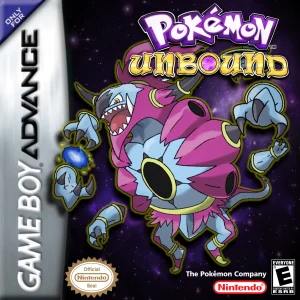
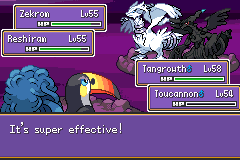
How to Download and Install Pokémon Unbound Safely

Pokémon Unbound is distributed as a patch rather than as a complete Game Boy Advance ROM. To play it, you need the official Pokémon Unbound patch, a clean copy of the correct Pokémon FireRed base game, a patching tool, and a compatible GBA emulator.
The safest approach is to get the Unbound patch from its official PokéCommunity thread and apply it yourself. Avoid random websites offering a pre-patched “Pokémon Unbound ROM download.” Besides the copyright issues involved with distributing a full FireRed ROM, pre-patched files can be outdated, modified, or simply be the wrong version of Unbound.
As of August 2026, Pokémon Unbound v2.1.1.1 remains the current widely referenced release. Because Unbound may eventually receive another update, check the official release thread before patching rather than assuming the version number in this guide is still current. Recent community guidance in 2026 continues to identify v2.1.1.1 as the latest official version.
What You Need Before Installing Pokémon Unbound
You only need a few files to get Pokémon Unbound running.
You will need:
- The official Pokémon Unbound patch
- A clean Pokémon FireRed 1.0 ROM that you legally obtained yourself
- A UPS-compatible ROM patcher
- A Game Boy Advance emulator
- A program or built-in utility capable of extracting ZIP files
The important distinction is that Pokémon Unbound itself is the patch. The patch contains the changes created by the Unbound developers, but it does not replace the copyrighted Pokémon FireRed game that those changes are applied to.
Rom Professor does not provide, host, or link to Pokémon FireRed ROM files or pre-patched Pokémon Unbound ROMs.
What Base ROM Does Pokémon Unbound Use?
Pokémon Unbound is based on Pokémon FireRed for the Game Boy Advance, but not every FireRed ROM will work.
You specifically need the clean Pokémon FireRed 1.0 USA ROM commonly identified as “1636” or “Squirrels.”
This distinction matters.
A different FireRed revision, a previously modified ROM, or a ROM that has already been patched with another hack can cause the Unbound patch to fail or produce a broken game.
Community installation instructions consistently identify the required base as the clean FireRed 1.0/Squirrels release.
Your original FireRed file should normally have a .gba extension.
Keep an untouched backup of your clean FireRed ROM once you have verified that it works. That way you can use the same clean base again whenever Pokémon Unbound receives an update instead of trying to patch over an older copy of Unbound.
Where to Get the Official Pokémon Unbound Patch
The safest starting point is the main Pokémon Unbound PokéCommunity thread maintained for the hack.
Pokémon Unbound on PokéCommunity
The community installation instructions direct players to that thread, where the current Unbound download is provided. The downloaded package contains the actual patch rather than a copyrighted FireRed ROM.
After downloading the ZIP file, extract it.
For the current release, look for the file named:
Pokemon Unbound Official.ups
The .ups extension tells you that this is a UPS patch.
Do not try to open the .ups file directly in your emulator. An emulator needs the finished .gba file that is created after you apply this patch to FireRed.
Also pay attention to what you download. Pokémon Unbound has had a separate Battle Frontier Demo. If you accidentally patch that instead of the main game, you can end up starting in the Battle Frontier rather than beginning Unbound’s normal story. Players were still encountering this mistake in 2026.
How to Patch Pokémon Unbound
The easiest method works on most computers, phones, and tablets because you can use a browser-based patcher.
Step 1: Download the Official Pokémon Unbound Patch
Open the Pokémon Unbound PokéCommunity page and download the current official release.
If a newer release than v2.1.1.1 is listed when you read this guide, use the newer official release instead.
Extract the downloaded ZIP file.
Locate:
Pokemon Unbound Official.ups
That is the file you will use as your patch.
Step 2: Prepare a Clean Pokémon FireRed ROM
Locate your legally obtained clean copy of Pokémon FireRed 1.0 USA / 1636 Squirrels.
Do not use:
- FireRed 1.1
- Another regional FireRed release
- An already-patched ROM
- Another FireRed ROM hack
- An old Pokémon Unbound ROM
You want a completely clean copy of the required base game.
Step 3: Open a UPS-Compatible ROM Patcher
A convenient option is Rom Patcher JS, which runs directly in a modern web browser and supports the ROM-and-patch workflow needed here. Its interface provides separate fields for the original ROM and patch file before applying the patch.
The Unbound community has also used desktop UPS patchers such as NUPS and Tsukuyomi, but the browser method is usually simpler for beginners.
Step 4: Select Your Pokémon FireRed ROM
Under ROM file, select your clean FireRed 1.0 .gba file.
Make sure you select the original FireRed ROM here, not the Unbound patch.
Step 5: Select the Pokémon Unbound Patch
Under Patch file, choose:
Pokemon Unbound Official.ups
The patcher should recognize the UPS patch.
If it reports that the source ROM is incorrect, stop rather than forcing the patch. The most common cause is using the wrong FireRed revision.
Step 6: Apply the Patch
Select Apply patch.
The patcher will create a new Game Boy Advance file containing Pokémon Unbound.
Depending on the patching tool and device, the resulting file may be downloaded with a .gba or similar GBA-compatible extension.
If a mobile browser incorrectly adds .txt to the end of the file, such as:
Pokemon Unbound.gba.txt
remove the extra .txt so the filename ends in .gba. This has been a known mobile patching issue reported by Unbound players.
Step 7: Rename the Finished ROM
You can rename the finished file to something simple such as:
Pokemon Unbound.gba
Or, if you want the version clearly identified:
Pokemon Unbound 2.1.1.1.gba
The filename itself does not change the game.
It can, however, become important later because many emulators expect the game’s save file to use the same filename as the ROM.
Step 8: Open Pokémon Unbound in Your Emulator
Launch your GBA emulator and select your newly patched Pokémon Unbound .gba file.
Do not select:
Pokemon Unbound Official.ups
The .ups file is only the patch.
Once the patch has been successfully applied, you no longer need to load the patch file when playing.
How to Play Pokémon Unbound on Windows, Mac, Android, and iPhone
Pokémon Unbound is a GBA hack, so the completed .gba file can be loaded by a compatible Game Boy Advance emulator.
Windows
For Windows, mGBA is one of the safest recommendations.
It has strong GBA compatibility and, importantly for Pokémon Unbound, properly supports the real-time clock features used by the game. Players encountering RTC problems in older versions of VisualBoyAdvance have reported resolving them simply by switching to mGBA.
Once mGBA is installed:
- Open mGBA.
- Choose the option to load a ROM.
- Select your patched
Pokemon Unbound.gbafile. - Start playing.
Mac
mGBA is also available for Mac and is a good default choice there.
The basic process is identical: open mGBA and load the patched .gba file.
Android
Android has several GBA emulator options.
Common choices among Unbound players include RetroArch using the mGBA core and Pizza Boy. Recent community recommendations continue to include both approaches.
Once your ROM is patched, import or open the resulting .gba file through your emulator.
Remember that Pokémon Unbound is a GBA game. A Nintendo DS-only emulator such as melonDS is not the appropriate emulator for the .gba file.
iPhone and iPad
For iPhone and iPad, Delta is a straightforward option for running GBA games.
Patch Pokémon Unbound first, then import the resulting .gba file into Delta.
The ROM patching step can also be performed through a browser on iOS, so you do not necessarily need a computer just to create the finished Unbound ROM.
Best Emulator Settings for Pokémon Unbound
Pokémon Unbound does not require a complicated emulator configuration when you are using a well-supported GBA emulator.
The most important feature is real-time clock support, commonly abbreviated RTC.
Pokémon Unbound uses the clock for time- and day-dependent content. The Unbound Wiki documents events that change based on the real day and time and specifically warns that manually changing the system clock can produce unintended effects.
If you receive a message saying the real system time cannot be read:
- Make sure your emulator supports RTC.
- Enable RTC if the emulator requires it manually.
- Close and restart the emulator.
- Check that your device’s date and time are correct.
- If the problem continues, try a better-supported emulator such as mGBA.
For most users, mGBA with its normal/default configuration is preferable to manually adjusting a long list of emulator settings.
Also use the game’s normal in-game save system regularly. Save states are convenient, but they should not be your only copy of your progress.
How to Update Pokémon Unbound Without Losing Your Save
Updating Pokémon Unbound is slightly different from installing an update for a normal PC or console game.
You generally create a new patched ROM using a clean copy of FireRed and then move your existing save over to the newly patched game.
Do not simply apply the new Unbound patch on top of your already-patched Unbound ROM unless the developer specifically instructs you to do so.
Before updating, make a backup of both your game and your save.
Step 1: Make an In-Game Save
Open your existing version of Pokémon Unbound.
For previous major Unbound updates, community instructions specifically advised entering the second floor of a Pokémon Center and making a normal in-game save before migrating to the new version.
Use the actual Pokémon save command.
Do not depend solely on a save state.
Step 2: Back Up Your Save File
Close the emulator.
Locate your emulator’s normal save file.
Depending on the emulator, it may have an extension such as:
.sav
.srm
.sa1
or .fla
The Unbound Wiki notes that Unbound save data is normally a 128 KB file and that the save filename should match the ROM filename.
Copy that file somewhere safe before changing anything.
Step 3: Patch a Fresh FireRed ROM
Download the new official Unbound patch.
Take another clean copy of FireRed 1.0/Squirrels and patch it with the new Unbound patch.
Do not overwrite your old installation until you have confirmed that your save works.
Step 4: Match the ROM and Save Filenames
Suppose your new ROM is:
Pokemon Unbound 2.1.1.1.gba
Your save may need to be named:
Pokemon Unbound 2.1.1.1.sav
The important part is that the names before the extensions match.
For example:
Pokemon Unbound.gba
and
Pokemon Unbound.sav
Community troubleshooting repeatedly confirms that mismatched ROM and save filenames are one of the major reasons a transferred save appears to disappear.
Step 5: Load the New Version
Open the newly patched ROM in your emulator.
If everything transferred correctly, you should see Continue rather than being forced to start a new game.
Keep your backup until you have played and saved successfully on the updated version.
Common Pokémon Unbound Installation Problems
“The Pokémon Unbound patch won’t apply”
The most likely cause is the wrong FireRed base ROM.
Pokémon Unbound expects the clean FireRed 1.0 / 1636 Squirrels release.
Trying FireRed 1.1 or another modified version can cause the patcher to reject the ROM.
Also make sure you selected:
- FireRed
.gbaunder ROM file Pokemon Unbound Official.upsunder Patch file
Do not reverse them.
“I only downloaded a UPS file. Where is Pokémon Unbound?”
That is normal.
The .ups file is the Pokémon Unbound patch.
You apply it to a clean FireRed ROM to create the playable .gba file.
“My emulator doesn’t recognize Pokémon Unbound”
Make sure you are trying to open the finished .gba file rather than the .ups patch.
Also check that the filename really ends in .gba. Some mobile patching workflows have been known to create something like .gba.txt, which needs to be corrected before a GBA emulator will recognize it.
“Pokémon Unbound says the RTC isn’t working”
Your emulator is not supplying a usable real-time clock.
Enable RTC if your emulator provides an option for it.
If that does not fix the problem, switch to an emulator with reliable RTC support. mGBA is a particularly good choice on Windows and Mac, and the mGBA core is available through RetroArch on other platforms.
“I updated Pokémon Unbound and my save disappeared”
First, don’t panic and don’t immediately overwrite your old files.
Check the filename of your new .gba file and compare it with the filename of your old .sav or equivalent save file.
They generally need to match.
For example:
Pokemon Unbound 2.1.1.1.gba
Pokemon Unbound 2.1.1.1.sav
Also make sure you are using an actual in-game save, not an emulator save state. Save states and normal Pokémon save files are different things, and a save state from an older ROM version should not be treated as a reliable way to migrate between versions.
“The game starts in the Battle Frontier instead of the story”
You probably patched the separate Battle Frontier Demo rather than the main Pokémon Unbound game.
Return to the official release source and make sure you are downloading and patching the main Unbound release. This exact mistake has continued to catch players because both files can appear in Unbound-related download locations.
“I patched the game, but it still opens regular Pokémon FireRed”
You may still be opening your original FireRed ROM.
The patching process creates a separate output file. Open the newly created Pokémon Unbound .gba file rather than the clean FireRed file you used as the base.
How to Verify Pokémon Unbound Installed Correctly
The easiest check is the title screen.
Launch the newly patched game and look for the Pokémon Unbound title screen rather than Pokémon FireRed.
The version number is also displayed on the Unbound title screen. Community guidance for the current release specifically notes that properly installed v2.1.1.1 should display 2.1.1.1 there.
If the normal Pokémon Unbound story begins after you create your character, you have the main game.
If you immediately end up in the Battle Frontier, you likely used the Battle Frontier Demo patch instead.
Once you have confirmed that the game starts normally, create an in-game save and restart the emulator once. If the Continue option appears and your save loads correctly, your basic installation is complete.
Pokémon Unbound Installation FAQ
Is Pokémon Unbound free?
The Pokémon Unbound patch is distributed freely by its developers.
You still need your own legitimate copy of the required Pokémon FireRed base game to create the playable ROM.
Can I download a complete Pokémon Unbound ROM?
You may find websites offering pre-patched Pokémon Unbound .gba files, but that is not the method we recommend.
The official distribution method uses a patch. Patching your own clean FireRed ROM gives you much better control over which Unbound version you are actually playing and avoids relying on an unknown modified ROM.
What ROM do I need for Pokémon Unbound?
Use a clean Pokémon FireRed 1.0 USA ROM, commonly identified as 1636 FireRed Squirrels.
What patch format does Pokémon Unbound use?
The current official package uses a UPS patch named Pokemon Unbound Official.ups.
What is the latest version of Pokémon Unbound?
As of August 2026, the current widely referenced official release remains Pokémon Unbound v2.1.1.1. Always check the official PokéCommunity thread before downloading because this can change.
For version history and future releases, see our Pokémon Unbound latest version guide.
What emulator should I use for Pokémon Unbound?
For Windows and Mac, mGBA is an excellent default.
For Android, options include RetroArch with the mGBA core and compatible standalone GBA emulators such as Pizza Boy.
For iPhone and iPad, Delta is a convenient option.
Whichever emulator you choose, make sure it properly supports the GBA’s real-time clock features.
Can I play Pokémon Unbound on Android?
Yes.
Patch the game first, then load the resulting .gba file into a compatible Android GBA emulator.
Can I play Pokémon Unbound on iPhone?
Yes.
The patched Pokémon Unbound .gba file can be imported into a compatible GBA emulator such as Delta.
Does Pokémon Unbound need a real-time clock?
Yes. Pokémon Unbound contains content tied to the real day and time, so you should use an emulator with reliable RTC support.
Can I update Pokémon Unbound without restarting?
Often, yes, provided the specific new release supports saves from your current version.
Back up your save first, follow the update instructions provided with that release, patch a fresh clean FireRed ROM, and use a proper in-game save rather than depending on save states.
Why does my old save not appear after updating?
Check that your ROM and save file have matching filenames.
For example:
Pokemon Unbound.gba
Pokemon Unbound.sav
Also verify that you copied the actual save file rather than an emulator save state.
Where should I go after installing Pokémon Unbound?
Once everything is running, our Pokémon Unbound beginner guide covers the settings, difficulty choices, early-game decisions, and other things worth knowing before beginning your first trip through Borrius.