How to Download and Install Pokémon FireRed Rocket Edition Safely
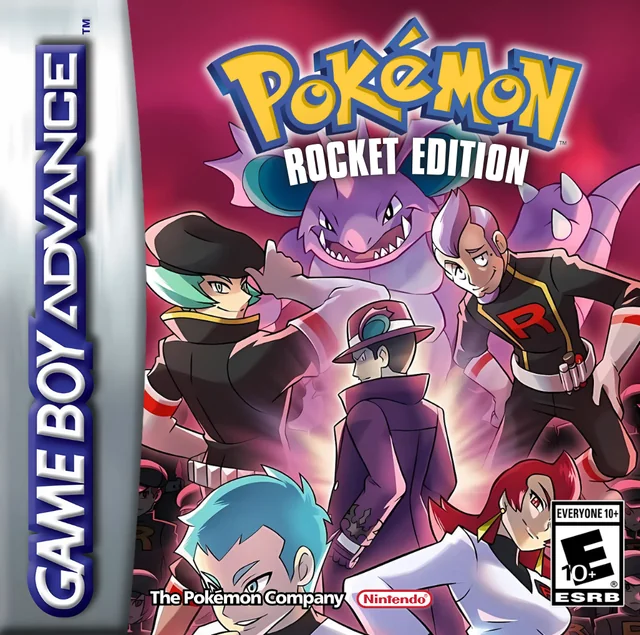
Pokémon FireRed: Rocket Edition is distributed as a patch for Pokémon FireRed rather than as a complete Game Boy Advance ROM. To install it properly, you need a clean copy of Pokémon FireRed v1.0, the official Rocket Edition patch, and a compatible GBA emulator.
The easiest method is the official Rocket Edition browser patcher. You select your clean FireRed ROM, the site verifies it, and the patcher creates the finished Rocket Edition .gba file directly in your browser. The official site also provides the raw IPS patch if you prefer to patch the game manually.
As of August 2026, the current completed release is Pokémon FireRed: Rocket Edition v1.0.2 FINAL. The completed version was originally released on April 9, 2020, with a minor dialogue edit on July 11, 2021. The creator’s source repository describes Rocket Edition as a completed ROM hack, and no newer official game release has replaced v1.0.2.
Rom Professor does not provide, host, or link to copyrighted Pokémon FireRed ROM files or pre-patched Rocket Edition ROMs. This guide covers the official patching method using a clean FireRed copy that you legally obtained yourself.
What You Need Before Installing Pokémon FireRed Rocket Edition
You need:
- A clean Pokémon FireRed v1.0 ROM that you legally obtained yourself
- The official Pokémon FireRed: Rocket Edition patcher or IPS patch
- A compatible Game Boy Advance emulator
- A modern web browser if you use the online patcher
- A safe place to store your ROM and save backups
The official Rocket Edition website handles most of the complicated part for you.
You provide the clean FireRed file.
The website applies the Rocket Edition changes.
The result is a playable:
Pokemon FireRed Rocket Edition.gba
file.
You then open that .gba file in your emulator.
You do not open the IPS patch directly in the emulator.
What Base ROM Does Pokémon FireRed Rocket Edition Use?
Pokémon FireRed: Rocket Edition requires:
Pokémon FireRed v1.0 USA
commonly identified as:
1636 - Pokemon Fire Red (U)(Squirrels).gba
The creator’s original release thread explicitly states that Rocket Edition is a hack of the 1636 Pokémon FireRed (U)(Squirrels) ROM and that applying it to another FireRed version will not work.
The official Rocket Edition patcher gives the same requirement in simpler terms: use a clean FireRed v1.0 ROM, often identified with the “Squirrels” annotation.
The commonly used clean FireRed v1.0/Squirrels base has:
CRC32
DD88761C
MD5
E26EE0D44E809351C8CE2D73C7400CDD
SHA-1
41CB23D8DCCC8EBD7C649CD8FBB58EEACE6E2FDC
Those hashes distinguish the required FireRed v1.0 ROM from FireRed Revision 1/1.1, which is a different file.
You usually do not need to calculate the hashes yourself because the official Rocket Edition patcher displays CRC32, MD5, and SHA-1 information when you select the ROM.
If the patcher reports a checksum failure, stop and verify your FireRed file.
Do not use:
- Pokémon FireRed 1.1 / Rev 1
- Pokémon LeafGreen
- Another regional FireRed ROM
- An already patched Rocket Edition ROM
- Another FireRed ROM hack
- A modified FireRed ROM
- A ZIP file instead of the extracted
.gba
Keep an untouched backup of your clean FireRed v1.0 file.
That gives you a known-good base if you ever need to reinstall Rocket Edition.
Where to Get the Official Pokémon FireRed Rocket Edition Patch
The best source is the creator’s official Rocket Edition website.
Official Pokémon FireRed: Rocket Edition website
The official download page includes a browser-based Rom Patcher JS interface specifically configured for Rocket Edition.
Official Rocket Edition patcher
The site also provides the raw:
.ips
patch for players who prefer to patch manually with a program such as Lunar IPS.
The game’s creator also maintains a public GitHub repository containing the scripts, graphics, music, assembly code, and other assets used to create the final game.
Rocket Edition source repository
Avoid searching for:
Pokemon FireRed Rocket Edition ROM download
or:
Rocket Edition prepatched gba
The official installation method does not require downloading a complete FireRed ROM from an unknown website.
Using the official patcher also makes it much easier to verify that you are playing the correct completed version rather than one of the many old beta builds that still circulate online.
How to Patch Pokémon FireRed Rocket Edition
The browser patcher is the easiest method.
Step 1: Prepare Your Clean Pokémon FireRed ROM
Locate your legally obtained copy of Pokémon FireRed v1.0.
It should be the clean:
1636 - Pokemon Fire Red (U)(Squirrels).gba
version.
If the file is compressed inside:
.zip
.7z
or:
.rar
extract it first.
You need the actual:
.gba
file.
Step 2: Open the Official Rocket Edition Patcher
Go to the official Rocket Edition download page.
Open the official Rocket Edition patcher
The page uses Rom Patcher JS and provides fields for the ROM and patch.
The patch itself is already configured for Rocket Edition.
Step 3: Select Your FireRed v1.0 ROM
Choose your clean Pokémon FireRed .gba.
The patcher will calculate:
- CRC32
- MD5
- SHA-1
and verify whether the ROM is compatible.
The official site specifically warns that a checksum failure means the ROM you supplied is not the correct clean FireRed v1.0 base.
If you get an error, do not force the patch.
Verify that you have FireRed 1.0 rather than FireRed 1.1.
Step 4: Apply the Patch
Once the ROM is accepted, select:
Apply Patch
The website will create a new patched .gba file.
This is your playable Pokémon FireRed: Rocket Edition game.
Your original clean FireRed ROM should remain separate.
Step 5: Rename the Finished ROM
Give the new file a clear name.
For example:
Pokemon FireRed Rocket Edition 1.0.2.gba
or simply:
Pokemon FireRed Rocket Edition.gba
The filename itself does not change the game.
However, many emulators use the ROM filename to associate the game with its save file.
Keeping the name simple now makes future save transfers easier.
Step 6: Open Rocket Edition in Your Emulator
Launch your GBA emulator.
Open the newly patched:
.gba
file.
Do not open:
- The FireRed base ROM
- The
.ipspatch - The downloaded ZIP
- An old Rocket Edition beta
You should see the Pokémon FireRed: Rocket Edition game rather than normal FireRed.
Step 7: Make a Test Save
Start the game.
Make a normal in-game Pokémon save as soon as practical.
Then:
- Close your emulator completely.
- Reopen Rocket Edition.
- Confirm that Continue appears.
- Load the save.
This confirms that your emulator is writing battery saves correctly before you invest hours into the game.
How to Patch Rocket Edition Manually With the IPS File
If you do not want to use the browser patcher, the official website also provides the raw IPS patch.
The creator specifically suggests a tool such as Lunar IPS for manual patching.
The process is:
- Download the official Rocket Edition
.ipspatch. - Obtain your clean FireRed v1.0/Squirrels
.gba. - Open Lunar IPS or another IPS-compatible patcher.
- Choose the option to apply an IPS patch.
- Select the Rocket Edition
.ips. - Select your clean FireRed
.gba. - Apply the patch.
- Save or locate the patched
.gba. - Open that file in your GBA emulator.
Do not apply the patch to FireRed 1.1.
Do not apply it to an existing Rocket Edition ROM.
Do not simply rename the .ips file to .gba.
Changing a filename does not apply the patch.
How to Play Pokémon FireRed Rocket Edition on Windows, Mac, Android, and iPhone
Rocket Edition is a Game Boy Advance ROM hack, so the finished .gba file runs through a compatible GBA emulator.
The creator’s official recommendations are:
Windows: VBA-M
Android: MyBoy
Other modern GBA emulators can work as well.
Windows
The official Rocket Edition site recommends VBA-M for Windows.
To play:
- Install VBA-M.
- Open the emulator.
- Choose the option to open a ROM.
- Select your patched Rocket Edition
.gba. - Configure your controls.
- Start the game.
- Make a normal in-game save.
There has been at least one documented Rocket Edition freeze report in VBA-M, so if you encounter a repeatable emulator-specific problem, testing the same ROM and save in another accurate GBA emulator such as mGBA is a reasonable troubleshooting step.
Do not immediately repatch the game if the same file works correctly in another emulator.
Mac
For Mac, a modern GBA emulator such as mGBA is a straightforward choice.
Once installed:
- Open mGBA.
- Load your Rocket Edition
.gba. - Configure your controls.
- Make an in-game save.
- Restart the emulator and confirm that the save loads.
The Rocket Edition project does not list a separate official Mac recommendation, so Mac support is primarily standard GBA-emulator compatibility rather than a hack-specific setup requirement.
Android
The official Rocket Edition recommendation for Android is MyBoy.
The process is simple:
- Patch Rocket Edition.
- Move the resulting
.gbato your phone if necessary. - Open MyBoy.
- Browse to the Rocket Edition file.
- Start the game.
- Make a normal save.
You do not need to load the IPS patch into MyBoy.
MyBoy opens the final .gba.
iPhone and iPad
Rocket Edition can be played on iPhone and iPad through a compatible GBA emulator such as Delta.
Players have successfully used Rocket Edition on iOS, including Delta-based setups.
The process is:
- Patch the game first.
- Save the finished Rocket Edition
.gbato your Files app. - Open Delta.
- Import the
.gba. - Start the game.
- Make a normal in-game save.
If you are moving from an old Rocket Edition beta to the final version, use Delta’s normal save export/import functionality rather than trying to load an old save state into a different ROM.
Steam Deck and Retro Handhelds
Rocket Edition can generally run on Steam Deck and retro handhelds that support Game Boy Advance emulation.
The important requirement is the emulator core.
On Steam Deck, an mGBA-based setup is a sensible choice.
On lower-powered retro handhelds, Rocket Edition can be somewhat more demanding than ordinary FireRed. A 2025 handheld performance discussion specifically identified FireRed Rocket Edition as one of the heavier Pokémon GBA hacks that can stutter under certain mGBA-core and CPU-governor combinations.
If a retro handheld stutters:
- Try another GBA core
- Check the device’s performance mode
- Disable unnecessary shaders
- Test standalone mGBA versus a Libretro core
- Make sure frame skipping is not being forced unnecessarily
A performance problem on a low-powered handheld does not necessarily mean the ROM was patched incorrectly.
Best Emulator Settings for Pokémon FireRed Rocket Edition
Rocket Edition does not require a large list of special emulator settings.
For most players:
Use a compatible GBA emulator and leave the core settings at their defaults.
A simple starting configuration is:
| Setting | Recommendation |
|---|---|
| System | Game Boy Advance |
| Windows | VBA-M officially recommended |
| Android | MyBoy officially recommended |
| Mac | mGBA is a practical choice |
| iPhone/iPad | Delta |
| Save type | Automatic/default |
| Normal in-game saves | Yes |
| Save states | Convenience only |
| Save backups | Recommended |
The creator’s official release instructions recommend VBA-M and MyBoy without requiring special save-type or BIOS configuration.
Use Normal In-Game Saves
Use the standard Pokémon save command regularly.
Save states are useful, but they should not be your only copy of your progress.
This becomes especially important if you are moving from an old beta to the final version.
An emulator save state records the state of the old ROM at a particular moment and may not transfer correctly to another build.
The normal battery save is the file you want to preserve.
How to Update Pokémon FireRed Rocket Edition Without Losing Your Save
The good news is that Rocket Edition’s creator specifically states that:
Save files from all earlier betas are compatible with the completed v1.0.2 release.
That means players who accidentally started an older beta generally do not need to replay the entire game from the beginning.
However, you still need to transfer the normal save correctly.
Step 1: Make a Normal In-Game Save
Open your old Rocket Edition beta.
Use the normal Pokémon save option.
Then close the emulator.
Do not rely only on a save state.
Step 2: Back Up the Old Save
Locate or export the game’s battery save.
It will usually end in:
.sav
or:
.srm
depending on the emulator.
Make a copy somewhere safe.
Do not modify your only copy.
Step 3: Patch a Fresh FireRed v1.0 ROM
Go to the official Rocket Edition patcher.
Use a clean FireRed v1.0/Squirrels ROM.
Create a fresh copy of Rocket Edition v1.0.2.
Do not patch the final release over your beta Rocket Edition ROM.
Start from clean FireRed again.
Step 4: Match the ROM and Save Filenames
Many emulators automatically associate saves based on filename.
Suppose your save is:
Pokemon FireRed Rocket Edition.sav
Your new ROM should be:
Pokemon FireRed Rocket Edition.gba
If your old beta was named:
Rocket Edition Beta.gba
and the save is:
Rocket Edition Beta.sav
while the final ROM is:
Rocket Edition Final.gba
your emulator may treat them as completely different games.
Back up the files first, then rename the copied save or new ROM so their names match.
Step 5: Import the Save If Your Emulator Uses a Library
Some emulators, especially mobile apps, manage saves internally.
In that case:
- Export the normal save from the old Rocket Edition game.
- Add the final v1.0.2 ROM.
- Use the emulator’s import-save option.
- Import the old battery save into the new game entry.
Do not import an emulator save state unless the emulator specifically supports cross-ROM state migration.
Step 6: Confirm the Save Works
Open the final version.
Check that:
- Continue appears
- Your party is intact
- Your items are intact
- Your money is correct
- Your story progress is correct
- Your stolen Pokémon are present
- You can save normally again
Then close the emulator and reload one more time.
Only after you confirm everything works should you consider deleting the old beta installation.
Is Pokémon FireRed Rocket Edition Still Being Updated?
Rocket Edition is considered complete.
The creator’s GitHub repository describes the hack as completed, and the original release thread labels v1.0.2 as the completed version.
As of August 2026, there is no newer official Rocket Edition release beyond v1.0.2 FINAL.
That means most players do not actually need to worry about future game updates.
The more common “update” problem is discovering that you accidentally downloaded an old beta and need to move your save to the finished version.
Common Pokémon FireRed Rocket Edition Installation Problems
“The official patcher says checksum failure”
You are almost certainly using the wrong FireRed ROM.
Rocket Edition requires:
FireRed v1.0 / 1636 Squirrels
The official patcher specifically checks the ROM and warns when the file does not match.
Check that your base has:
CRC32: DD88761C
Do not use FireRed Rev 1/1.1.
“I have FireRed 1.1. Can I still patch Rocket Edition?”
No.
The creator specifically states that Rocket Edition was built for the 1636 FireRed Squirrels ROM and that other versions will not work.
Use FireRed v1.0.
“My emulator won’t open the IPS file”
That is expected.
The .ips file is a patch.
It is not a complete GBA game.
Use the official patcher or Lunar IPS to apply it to FireRed v1.0.
Then open the resulting:
.gba
file.
“Can I rename the .ips file to .gba?”
No.
Renaming:
Rocket Edition.ips
to:
Rocket Edition.gba
does not transform the patch into a playable ROM.
The data still contains only the patch instructions.
“The patcher worked, but normal FireRed still starts”
You are probably opening the clean FireRed base rather than the patched output.
Look for the new .gba file created by the patcher.
Rename it something obvious such as:
Pokemon FireRed Rocket Edition.gba
“The game ends around Nugget Bridge or Bill”
You may be playing an old beta.
This is a very common Rocket Edition problem because incomplete beta builds continue to circulate on random ROM sites.
The official completed release is:
v1.0.2 FINAL
and the game’s creator states that it continues through the completed story and ends shortly after the credits.
Patch a clean FireRed v1.0 ROM through the official Rocket Edition site and transfer your normal save.
“Can I keep my beta save?”
Yes.
The creator explicitly states that saves from all earlier Rocket Edition betas are compatible with the completed release.
Use the normal battery save, not merely an emulator save state.
“My beta save won’t appear in the final version”
Check the filenames.
For example:
Rocket Edition.gba
and:
Rocket Edition.sav
should match.
If you’re using Delta, MyBoy, or another library-based emulator, you may need to manually export the old save and import it into the final ROM entry.
Do not start a new game and overwrite the old save before making a backup.
“Rocket Edition freezes when I use Fly”
There is one documented game bug worth knowing.
The creator’s completed-release notes warn that using Fly against a Koffing or Weezing during battle may crash the game.
If that exact situation causes a crash, it does not necessarily mean your ROM is corrupted.
Avoid using Fly against Koffing or Weezing in battle.
“My surfing sprite looks broken”
Another documented minor bug can make the player’s surfing sprite appear incorrect.
The creator recommends refreshing the screen by:
- Opening and closing the menu
- Entering a building
The sprite should correct itself.
“Rocket Edition keeps freezing in VBA-M”
The official site recommends VBA-M, but individual emulator bugs can still occur.
If you have a repeatable freeze:
- Make an in-game save.
- Back up the save.
- Test the same ROM and save in another emulator such as mGBA.
- If it works there, the problem is probably emulator-specific.
A Rocket Edition freeze has previously been reported directly to the VBA-M project.
“My save disappeared after renaming the ROM”
Many emulators identify save files by matching filenames.
For example:
Rocket Edition.gba
and:
Rocket Edition.sav
match.
But:
Rocket Edition Final.gba
and:
Rocket Edition Beta.sav
may not.
Make a backup, then rename or import the save appropriately.
“I downloaded Rocket Edition, but it says beta”
You probably downloaded an obsolete version from an unofficial source.
Use the creator’s official patcher and create the current completed version from clean FireRed v1.0.
“Is Rocket Edition v1.0 different from v1.0.2?”
Yes.
The current completed release is v1.0.2 FINAL.
The original completed version was released in April 2020, and the final 1.0.2 package includes the later minor dialogue edit from July 2021.
For a new installation, use v1.0.2.
Are Cheats Safe to Use in Pokémon FireRed Rocket Edition?
Be cautious.
Rocket Edition heavily modifies FireRed’s scripts, variables, events, and memory usage.
A cheat designed for vanilla Pokémon FireRed may write to a memory location that Rocket Edition uses differently.
That can cause:
- Broken story flags
- Missing events
- Corrupted items
- Invalid Pokémon data
- Crashes
- Save corruption
- Progression softlocks
If you choose to experiment with cheats:
- Make a separate backup of your
.sav. - Use one cheat at a time.
- Do not save immediately after activating an untested code.
- Avoid walk-through-walls cheats during story events.
- Disable cheats before important scripted scenes.
- Keep an untouched backup save.
Rom Professor does not recommend assuming that a FireRed cheat is safe simply because Rocket Edition uses FireRed as its base.
How to Verify That Pokémon FireRed Rocket Edition Installed Correctly
There are three things worth checking.
Check the Game
Launch the newly patched .gba.
You should see Pokémon FireRed: Rocket Edition rather than normal Pokémon FireRed.
Check the Version
For the completed game, you should be running:
v1.0.2 FINAL
That is the completed release listed by the creator and current game databases.
If your game is labeled as an old beta, repatch using the official site.
Test the Save System
Start the game.
Make a normal in-game save.
Close the emulator completely.
Reopen Rocket Edition.
Confirm that:
Continue
appears.
Load the save.
If the completed game starts correctly and your battery save survives a full emulator restart, the installation is working.
Pokémon FireRed Rocket Edition Installation FAQ
What is the latest version of Pokémon FireRed Rocket Edition?
As of August 2026, the current completed version is:
Pokémon FireRed: Rocket Edition v1.0.2 FINAL
The completed release dates to April 9, 2020, with a minor dialogue edit on July 11, 2021.
For future verification, see our Pokémon FireRed Rocket Edition latest version guide.
Is Pokémon FireRed Rocket Edition complete?
Yes.
The creator describes Rocket Edition as a completed Pokémon FireRed ROM hack, and v1.0.2 is the completed release.
The game ends shortly after the credits rather than continuing into a large traditional postgame.
What base ROM does Pokémon FireRed Rocket Edition need?
Use:
Pokémon FireRed v1.0 USA
commonly known as:
1636 Pokémon FireRed (U)(Squirrels)
with:
CRC32: DD88761C
Does Rocket Edition work with FireRed 1.1?
No.
Use FireRed 1.0.
The creator’s release instructions state that applying Rocket Edition to another FireRed version will not work.
What patch format does Pokémon FireRed Rocket Edition use?
The official manual download uses an:
IPS patch
The official website can apply it automatically in your browser.
What patcher should I use?
The easiest choice is the official Rocket Edition browser patcher.
If you want to patch manually, the creator suggests a tool such as Lunar IPS.
What emulator should I use for Pokémon FireRed Rocket Edition?
The official recommendations are:
Windows: VBA-M
Android: MyBoy
mGBA is also a practical alternative on desktop if you encounter emulator-specific problems.
Can I play Pokémon FireRed Rocket Edition on Android?
Yes.
The creator specifically recommends MyBoy for Android.
Patch the game first, then open the finished .gba.
Can I play Pokémon FireRed Rocket Edition on iPhone?
Yes.
Patch the game first and import the resulting .gba into a compatible GBA emulator such as Delta.
Can I play Pokémon FireRed Rocket Edition on Mac?
Yes.
Use a compatible GBA emulator such as mGBA.
Can I play Rocket Edition on Steam Deck?
Yes, provided you use a compatible GBA emulator.
An mGBA-based setup is a good starting point.
Can I play Rocket Edition on a retro handheld?
Usually.
However, some low-powered handhelds can struggle with more demanding GBA hacks, including Rocket Edition.
If you experience stuttering, try another GBA core or performance setting.
Can I update an old Rocket Edition beta without restarting?
Yes.
The creator states that saves from all earlier betas are compatible with v1.0.2 FINAL.
Patch a fresh FireRed v1.0 ROM with the completed version and transfer your normal battery save.
Why won’t my old Rocket Edition save work?
The most common causes are:
- You are importing a save state instead of the battery save
- The ROM and save filenames do not match
- Your emulator stores saves internally
- You imported the save into the wrong game entry
- The old save was already corrupted
Back up the old save before troubleshooting.
Is Rocket Edition still being updated?
The game itself is considered complete.
The final release is v1.0.2, and the creator’s repository describes Rocket Edition as a completed hack.
Is this the same as Pokémon Team Rocket Edition by Dragonsden?
No.
There are multiple Pokémon ROM hacks built around playing as Team Rocket.
This guide is specifically for:
Pokémon FireRed: Rocket Edition by colonelsalt
—the hack whose story runs parallel to the original FireRed and allows you to steal Pokémon from defeated Trainers.
Do not accidentally follow installation instructions for another Team Rocket hack.
Where should I go after installing Pokémon FireRed Rocket Edition?
Once the game is running, read our Pokémon FireRed Rocket Edition beginner guide.
Rocket Edition looks like FireRed at first glance, but the morality system, Pokémon stealing, Team Rocket promotions, limited early Poké Ball access, sidequests, and story structure change how you should approach a first playthrough.